Templates
The HTML, Word and Excel templates that make each document with Carbone tags, the check Spooldoc runs before each render, assets, and how PDFs are laid out.
A template is an ordinary HTML page with Carbone
tags, such as {d.pg.invoiceNo}, a Word document with the same
tags in its text (see Word templates), or an Excel
workbook with the tags in its cells (see Excel templates).
A job has one or more templates. Each page group the definition finds
becomes a document through every template, in that template's formats:
an HTML template makes HTML files, PDFs or both, and a Word template makes
DOCX files, PDFs or both. An Excel template makes XLSX files, PDFs or
both, by default one of the whole spooled file with a row per line.
Until you write or upload one, the starter template renders the fields in
a header block and a table for each table, record or group. See
Templates.
Spooldoc renders every document with a Carbone server, your own or Carbone Cloud. See Carbone to set one up.
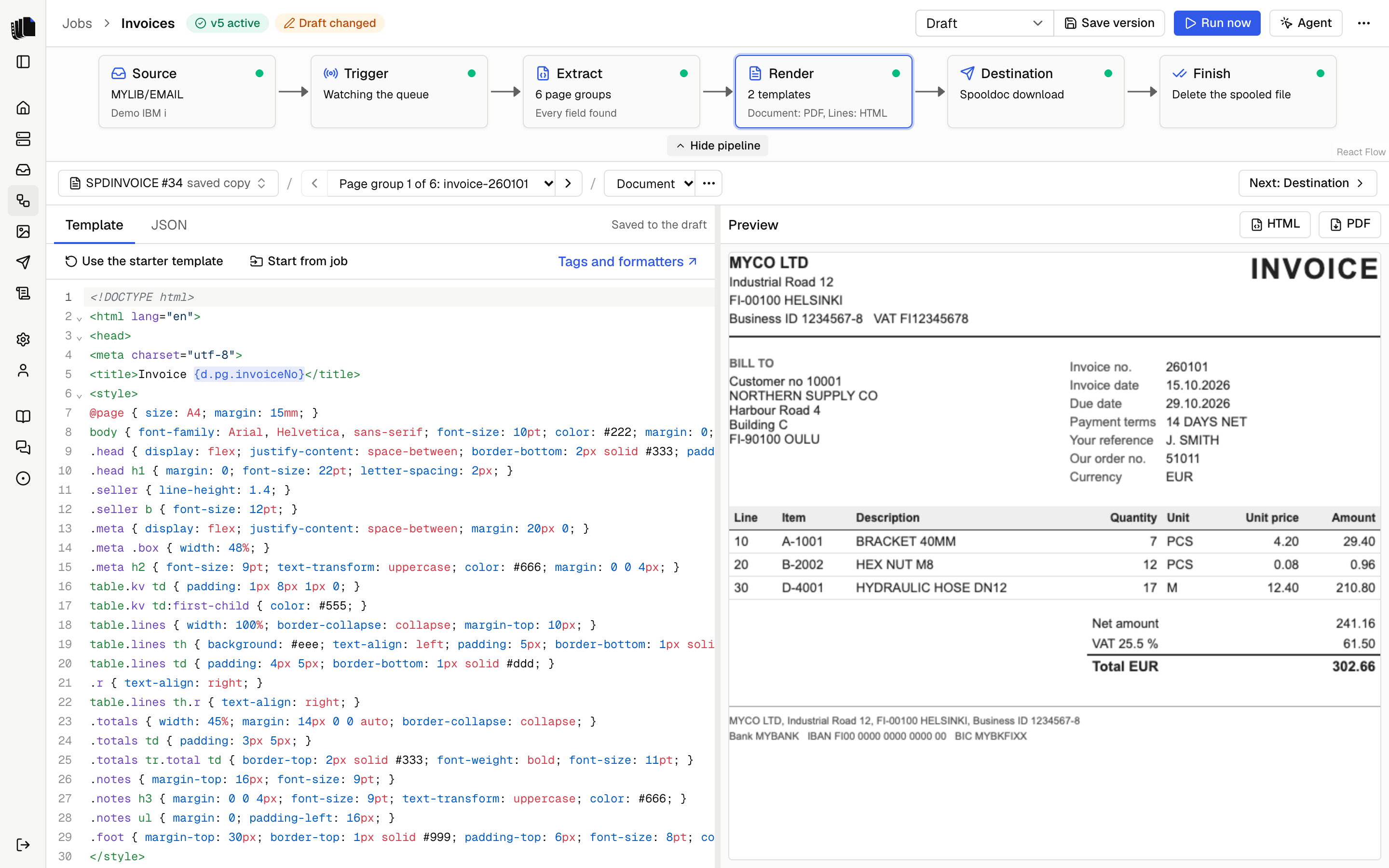
"Start from job" in the template editor's bar copies another job's template, HTML, Word or Excel, into the template shown, and on request its definition into the draft. When the other job has more than one template, pick the one to copy. The agent does the same when asked.
The data
A tag starts with d, the data of the document being made:
| Path | What it is |
|---|---|
d.pg | pg is the page group: the one the document is made from, with the fields, tables, records and groups of the definition. |
d.pgs | pgs is every page group of the spooled file, for page counts or totals. Sent only to templates that use it. |
d.splf | The spooled file: name, number, jobName, jobUser, jobNumber. |
An Excel template that makes one file of the whole spooled file gets
d.pgs and d.splf, and no d.pg. See What each file holds.
<h1>Invoice {d.pg.invoiceNo}</h1>
<p>{d.pg.customerName}<br>{d.pg.invoiceDate:formatD('DD.MM.YYYY')}</p>
<table>
  <tr><td>{d.pg.lines[i].item}</td><td class="num">{d.pg.lines[i].amount:formatN(2)} EUR</td></tr>
  <tr><td>{d.pg.lines[i+1]}</td></tr>
</table>
Values are HTML-escaped. A missing field renders as nothing.
Loops
A row with [i] tags repeats for each item of a list. The row after it,
with an [i+1] tag, marks where the loop ends; Carbone removes it.
<tbody>
  <tr><td>{d.pg.lines[i].line}</td><td>{d.pg.lines[i].item}</td></tr>
  <tr><td>{d.pg.lines[i+1]}</td></tr>
</tbody>
The same works for <li>, <div> or any other element. A loop without
its [i+1] row is an error.
Conditions
showBegin and showEnd keep a part only when the condition holds:
{d.pg.address2:ifNEM:showBegin}{d.pg.address2}<br>{d.pg.address2:showEnd}
{d.pg.type:ifEQ('C'):showBegin}<h2>Credit note</h2>{d.pg.type:showEnd}
ifNEM is "not empty"; ifEM, ifEQ, ifNE, ifGT, ifGTE, ifLT and
ifLTE work the same way. hideBegin and hideEnd do the opposite.
Formatters
Formatters follow the path, each after a colon:
| Formatter | Example | Result |
|---|---|---|
formatN | {d.pg.total:formatN(2)} | 1,234.50 |
formatD | {d.pg.invoiceDate:formatD('DD.MM.YYYY')}, {d.pg.invoiceDate:formatD('YYYY-MM-DD')} | 01.10.2026, 2026-10-01 |
padl, padr | {d.pg.no:padl(8)}, {d.pg.no:padr(8, '.')} | Padded to eight characters on the left, or on the right with dots |
upperCase, lowerCase | {d.pg.city:upperCase} | HELSINKI |
Numbers use English separators. Write a currency after the tag, as in
{d.pg.total:formatN(2)} EUR, or from the data:
{d.pg.total:formatN(2)} {d.pg.currency}. formatN without a number
shows three decimals.
Inside a tag, quote text with straight single quotes. Carbone prints double quotes and curly quotes as text, so the check below refuses them.
Carbone has many more formatters, loops with filters and sorting, and
aliases. See Carbone's documentation.
Some of them, such as aggregators (:aggSum), :drop and :barcode, need
Carbone Enterprise. See Community and Enterprise.
The check before each render
Carbone renders some mistakes without an error: it prints nothing for a
field that is not in the data, and prints quotes it does not accept. So
Spooldoc checks each template before it renders, and the Template tab
lists each problem with its line (for a Word template, with its part:
body, header or footer, and for an Excel template, with its sheet and
cell, such as Lines!B3):
- a tag whose field is not in the definition, such as
{d.pg.invoiceNumber}, with the field it most likely means; - double quotes or curly quotes inside a tag;
- Nunjucks, such as
{{ doc.x }}or{% for %}, from Spooldoc 0.2 and older or pasted from elsewhere; - a tag that is never closed;
- a tag with an old name,
d.pageGroupord.pageGroups, with its new name,d.pgord.pgs; - an asset name that is not uploaded.
An Excel template has its own rules on top.
A template with problems is not rendered, in the preview or in a run.
Carbone's own errors, such as a loop without an [i+1] row or a
formatter it does not have, show with Spooldoc's message on top and
Carbone's text under Details.
Word templates
A template can be a Word document instead: you lay it out in Word, with Word's own styles, headers and footers, and type the tags into its text. It makes DOCX files, PDFs or both; a new Word template makes DOCX only, and so does a template that turns into one. Pick Make it a Word template in the template's menu on the render step, or ask the agent for one.
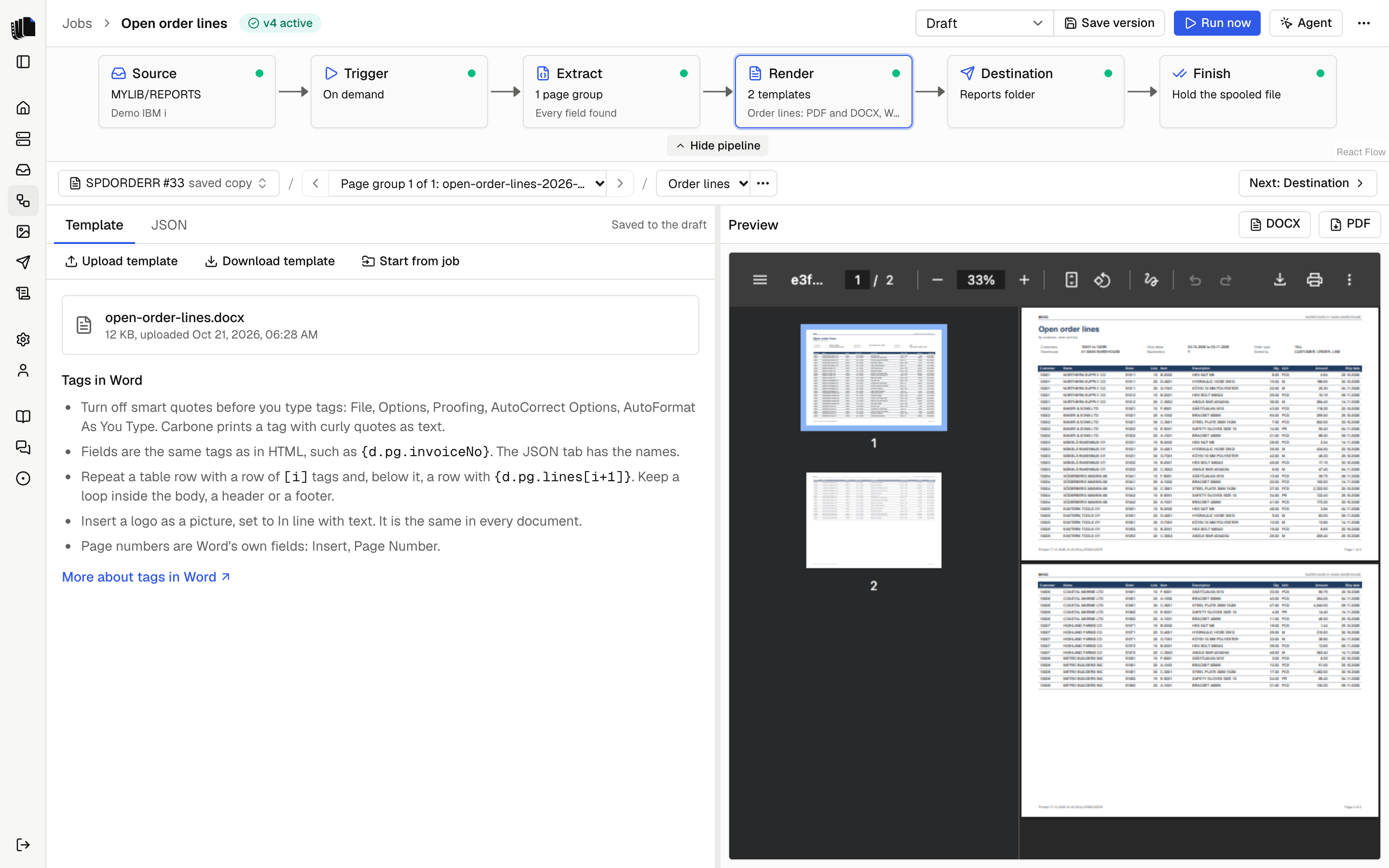
Until you upload one, the preview uses a Word starter template made from the definition, with the same layout as the HTML one and "Page 1 of 2" in the footer. To make your own:
- Choose Download starter template in the Template tab.
- Open it in Word. Turn off smart quotes first (see below), then change the layout, add a logo and move the tags where you want them.
- Choose Upload template and pick the
.docx.
Each upload is kept as its own file, and the draft points at the newest
one. A saved version keeps the file it was saved with, so uploading again
changes only the draft. Download template gives the uploaded file back.
Spooldoc takes .docx files up to 10 MB; it refuses a Word 97-2003
.doc and says to save it as a Word Document.
The agent can design a Word template for you, or change yours. Each change is a new file, and the Word panel offers your earlier file back.
Tags in Word
- Turn off smart quotes before you type tags. Word turns
'into a curly quote by default, and Carbone prints a tag with curly quotes as text. In Word: File, Options, Proofing, AutoCorrect Options, AutoFormat As You Type, then clear "Straight quotes" with "smart quotes". On a Mac: Word, Preferences, AutoCorrect, AutoFormat As You Type. The check finds a tag with curly quotes. - The tags are the ones HTML templates use, such as
{d.pg.invoiceDate:formatD('DD.MM.YYYY')}. Word splits a tag into several pieces when part of it is styled or typed later; Spooldoc and Carbone read each paragraph as one text, so that is fine. A tag cannot go across two paragraphs. - Repeat a table row with a row of
[i]tags and, below it, a row with{d.pg.lines[i+1]}in its first cell, as in HTML. Keep a loop inside one part: the body, a header or a footer. - An optional line is hidden with its line break when its field is
empty:
{d.pg.address1}{d.pg.address2:ifEM:hideBegin}, then a line break (Shift+Enter), then{d.pg.address2}{d.pg.address2:hideEnd}. The starter template writes its fields this way. - Pictures, such as a logo, are inserted in Word and are the same in
every document. Set each to In line with text (Picture Format, Wrap
Text), so it stays in place.
{asset('name')}is for HTML templates only; the check reports it in a Word template.
Page numbers and fields
Insert page numbers with Insert, Page Number, or the PAGE and NUMPAGES fields. In a DOCX file, Word fills them in when it opens the file. In the PDF, Carbone's own converter prints them at the document's default font size, not the size of the text around them in the footer.
The PDF of a template with cross-references (PAGEREF or REF fields) is made with LibreOffice instead, which works them out itself. Tables of contents have not been tested: check the PDF before you rely on one.
Word templates by the agent
The agent designs a Word template as data in the shape of the docx library's options, and Spooldoc builds the file with these parts of the library only:
| Part | What it can set |
|---|---|
| The document | Named paragraph styles, the default font and spacing, the title and heading styles, different headers and footers on even pages. |
| A section | Page size and orientation (A4 unless set), margins, a different first page, headers and footers. |
Paragraph | Text, a style or heading, a bullet, alignment, spacing, indents, borders, shading, tab stops, keep with next, keep lines together, a page break before. |
TextRun | Font, size, color, bold, italics, underline, caps, small caps, letter spacing, superscript, subscript, highlight, shading, line breaks. |
Tab, PageNumber | A tab, and the PAGE and NUMPAGES fields, written the way Word writes them so the PDF prints them. |
Table, TableRow, TableCell | Widths, column widths, fixed layout, alignment, borders, cell padding, shading, vertical alignment, cells across columns and rows, header rows repeated on each page, rows kept on one page. |
ImageRun | A PNG or JPEG uploaded under Assets, by name, with a size in pixels. |
Anything else in a design is refused with where it is, and nothing is saved. The tags, loops and optional lines are the ones in Tags in Word.
Excel templates
A template can be an Excel workbook instead, for documents people want to sort, filter and sum: you lay it out in Excel, with Excel's own formats, formulas and page setup, and type the tags into its cells. It makes XLSX files, PDFs or both; a new Excel template makes XLSX only, and so does a template that turns into one. Pick Make it an Excel template in the template's menu on the render step, or ask the agent for one.
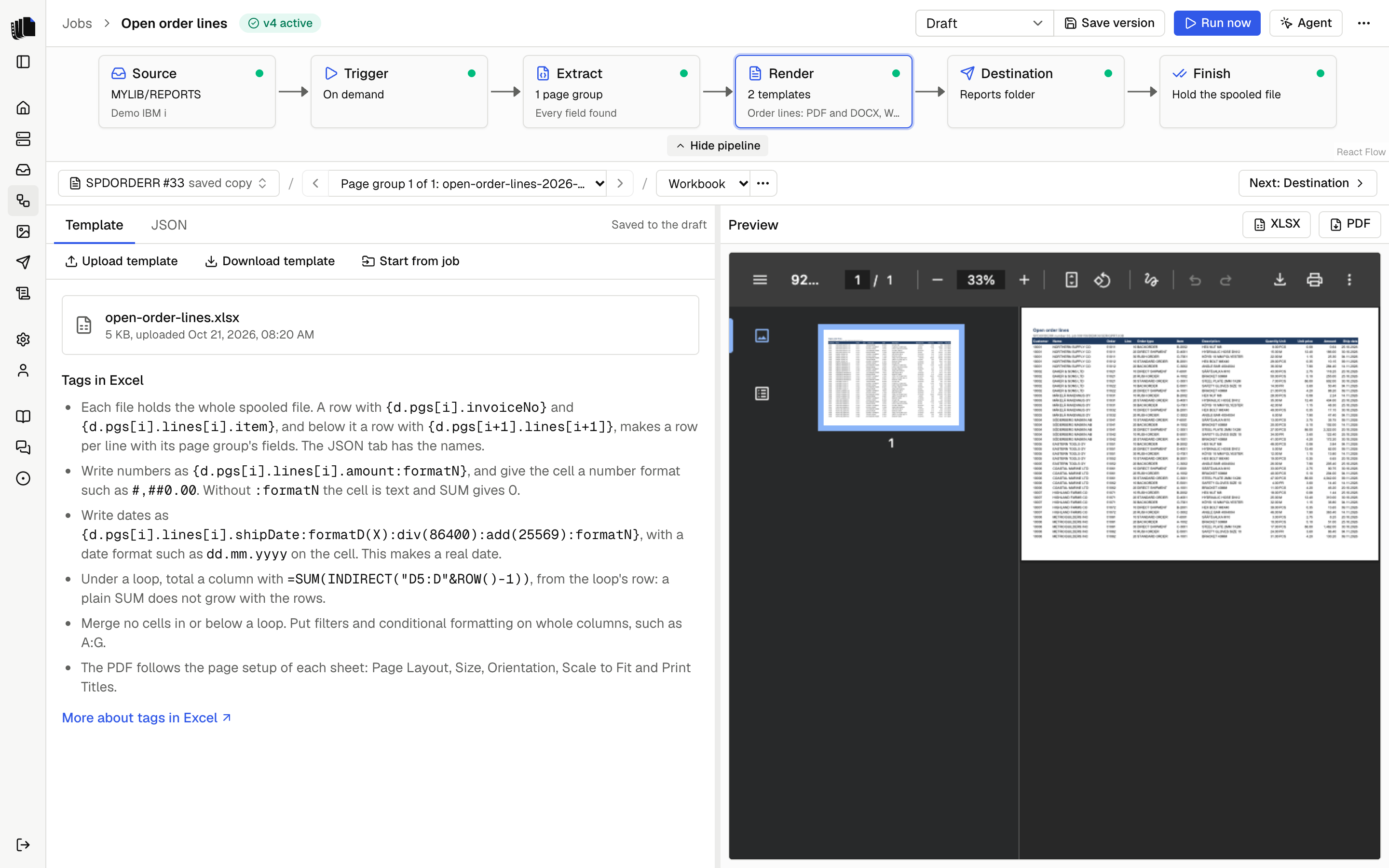
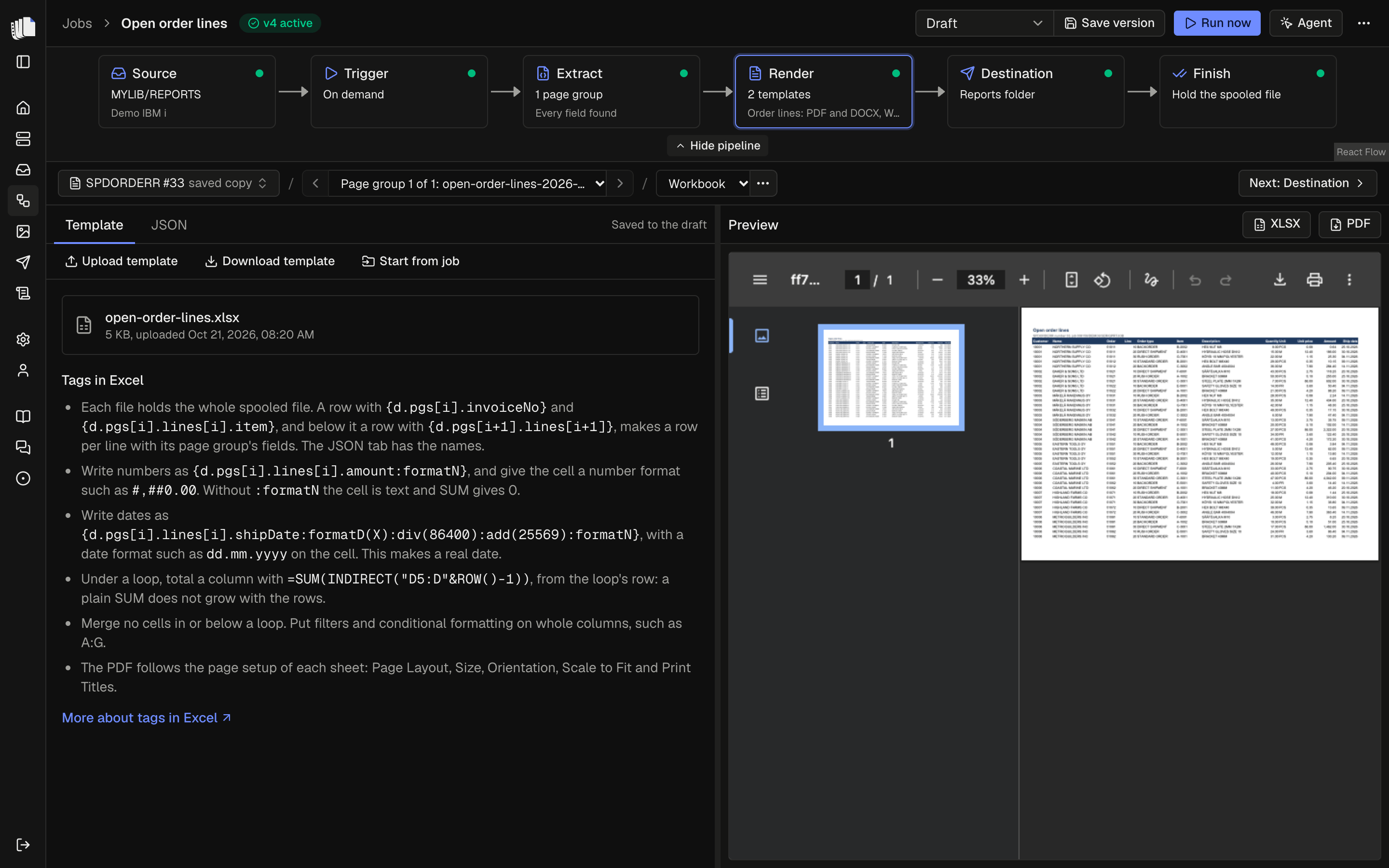
Until you upload one, the preview uses an Excel starter template made from the definition. To make your own:
- Choose Download starter template in the Template tab.
- Open it in Excel. Change the layout, the formats and the columns, and keep the rules below.
- Choose Upload template and pick the
.xlsx.
Uploads are kept as for Word templates: each is its
own file, and a saved version keeps the file it was saved with. Spooldoc
takes .xlsx files up to 10 MB; it refuses an Excel 97-2003 .xls and
says to save it as an Excel Workbook.
The agent can design an Excel template for you, or change yours. Each change is a new file, and the Excel panel offers your earlier file back.
What each file holds
An Excel template has a setting, Each file holds, in the template's menu:
- Whole spooled file (the default): one file per spooled file, named
after it, such as
spdinvoice.xlsx.dis{ pgs, splf }. A row with{d.pgs[i].invoiceNo}and{d.pgs[i].lines[i].item}, and right under it a row with{d.pgs[i+1].lines[i+1]}, makes a row per line, with its page group's fields on each row. That is the flat sheet people filter and pivot. A page group without lines has no row. - Page group: one file per page group, named like other documents,
with
das for HTML and Word templates (d.pg,d.pgs,d.splf).
For a file of the whole spooled file, the starter template has a sheet per table, record or group:
| Row | What it holds |
|---|---|
| 1 | The header row: frozen, filtered, and repeated on each printed page. |
| 2 | {d.pgs[i].invoiceNo} ... {d.pgs[i].lines[i].amount:formatN}: the page group's fields, then the table's columns. |
| 3 | {d.pgs[i+1].lines[i+1]}, the end of the loop. |
It has no total row: a total inside a table you filter and sort gets in the way. Excel's status bar shows the sum of the cells you select, also of a filtered column.
For one page group, it has the title and the fields, then the first table with a total under each number column. Each other table is on a sheet of its own.
Tags in Excel
- Numbers: write every number as
{d.pgs[i].lines[i].amount:formatN}, and give the cell a number format, such as#,##0.00. Without:formatNthe cell is text and SUM gives 0. The cell's format decides the decimals::formatN(2)writes the same number. - Dates: write a date as
{d.pgs[i].invoiceDate:formatD(X):div(86400):add(25569):formatN}, and give the cell a date format, such asdd.mm.yyyy. This makes a real date cell. Without the formula, the date is the text2026-10-15. - Totals under a loop:
=SUM(INDIRECT("D5:D"&ROW()-1)), where 5 is the loop's row. A plain=SUM(D5:D6)is not moved when rows are added, so it gives a wrong total. - No merged cells in or below a loop. Carbone does not move merged cells with the rows it adds. A merge above the loop is fine.
- Ranges do not grow. Carbone moves no range when it adds rows, so
filters, data validation and conditional formatting stay on the
template's rows. Put them on whole columns, such as
A:G, or down to a far row, such asD2:D10000. - No Excel tables or charts over a loop. They do not grow with the rows Carbone adds. Use a filter on whole columns instead of a table.
- Notes print in the PDF as note icons and do not move with the rows. Keep them above the loop, and only where the XLSX matters more than the PDF.
- Pictures, such as a logo, are inserted in Excel, above the header
row. A picture over the rows repeated at the top prints on every page.
{asset('name')}is for HTML templates only. - In the PDF, data bars and color scales print, icon sets do not, and a gradient fill prints as one color.
- Functions. LibreOffice works out the formulas. It has the long-standing functions and XLOOKUP, XMATCH, IFS, SWITCH, TEXTJOIN, CONCAT, MAXIFS, MINIFS and IFNA. Avoid LET and the functions that spill into more cells, such as FILTER, SORT, UNIQUE and SEQUENCE.
- One sheet per document does not work. A block per page group in one
sheet does: a loop over
d.pgs.
The formulas are worked out before the file is delivered, so a preview or a mail viewer shows the totals. To do that, Carbone has LibreOffice save the XLSX when the template has formulas or numbers.
The check of an Excel template
Before each render, Spooldoc checks the tags in every cell, as for HTML and Word, and these rules:
- a number field alone in a cell without
:formatN; :formatNstraight on a date field, which writes a number cell with no number in it;- a
:formatNtag in a cell saved as an inline string, which Carbone writes as text: type the tag into the cell again in Excel; - merged cells in or below a loop row;
- conditional formatting, data validation or an Excel table whose range ends on the loop rows, so it misses the rows Carbone adds;
- a note in or below the loop;
- a newer function, such as XLOOKUP, written without its
_xlfn.prefix in the file, which LibreOffice computes as#NAME?. Excel writes the prefix itself; an edit to the XML must too; d.pgin a template that holds the whole spooled file, with thed.pgs[i]tag to use instead;{asset('name')}.
Excel templates by the agent
The agent designs an Excel template as data, a tree of sheets, cells and styles. Spooldoc checks it and writes the file with the hucre library, with these parts only:
| Part | What it can set |
|---|---|
| The workbook | Its sheets, the default font (Arial 10 unless set), named ranges, the sheet that opens first. |
| A sheet | Name, tab color, frozen rows and columns, zoom, grid lines, column widths, hidden and grouped columns and rows, row heights, merged cells, a filter. |
| A cell | Text with tags, a number, true or false, a date, rich text, a formula, a link, a note. |
| A style, on a cell or a column | Number format, font, size, color, bold, italics, underline, strikethrough, a solid or gradient fill, borders, alignment, wrapping, indent, rotation. |
| Conditional formatting | Rules on a value, a formula, text, duplicates, the top or bottom values and the average, color scales, data bars, icon sets. |
| Data validation | A list, whole or decimal numbers, dates, text length or a formula, with its prompt and error message. |
| Images | A PNG or JPEG uploaded under Assets, by name, at a cell with a size in pixels, or over a range. |
| Page setup | Paper size, orientation, fit to pages or a scale, margins, centering, grid lines, the print area, rows and columns repeated on each page. |
| Header and footer | Left, center and right parts with the page number, the number of pages, the date and the sheet name; a different first page, and different even pages. |
Anything else in a design is refused with where it is, and nothing is saved. Excel tables, charts, sparklines, protection and macros are not part of a design. A sheet without a page setup gets A4 portrait, one page wide. The tags, loops and formulas are the ones in Tags in Excel.
The PDF
The PDF of an Excel template is made by LibreOffice and follows each sheet's page setup in Excel, on the Page Layout tab:
- Size: A4.
- Orientation: landscape for wide sheets.
- Scale to Fit: Width 1 page, Height Automatic, so every column is on the page.
- Print Titles: the header row in Rows to repeat at top.
- Header & Footer: Page 1 of ? for page numbers.
The starter template has all of these, and a sheet the agent designs without one gets A4 portrait, one page wide. A sheet you made in Excel without a page setup prints on US Letter portrait, and its columns can be cut off; the Template tab says which sheets have none. Every sheet is printed, one after the other. Many columns on one page make small text: keep the columns a printed copy needs, or use the PDF of a page group instead.
Logos, images and fonts
This section is about HTML templates. In a Word or Excel template, insert the picture in Word or Excel (see Word templates).
Templates cannot fetch anything, so an <img src="https://..."> may stay
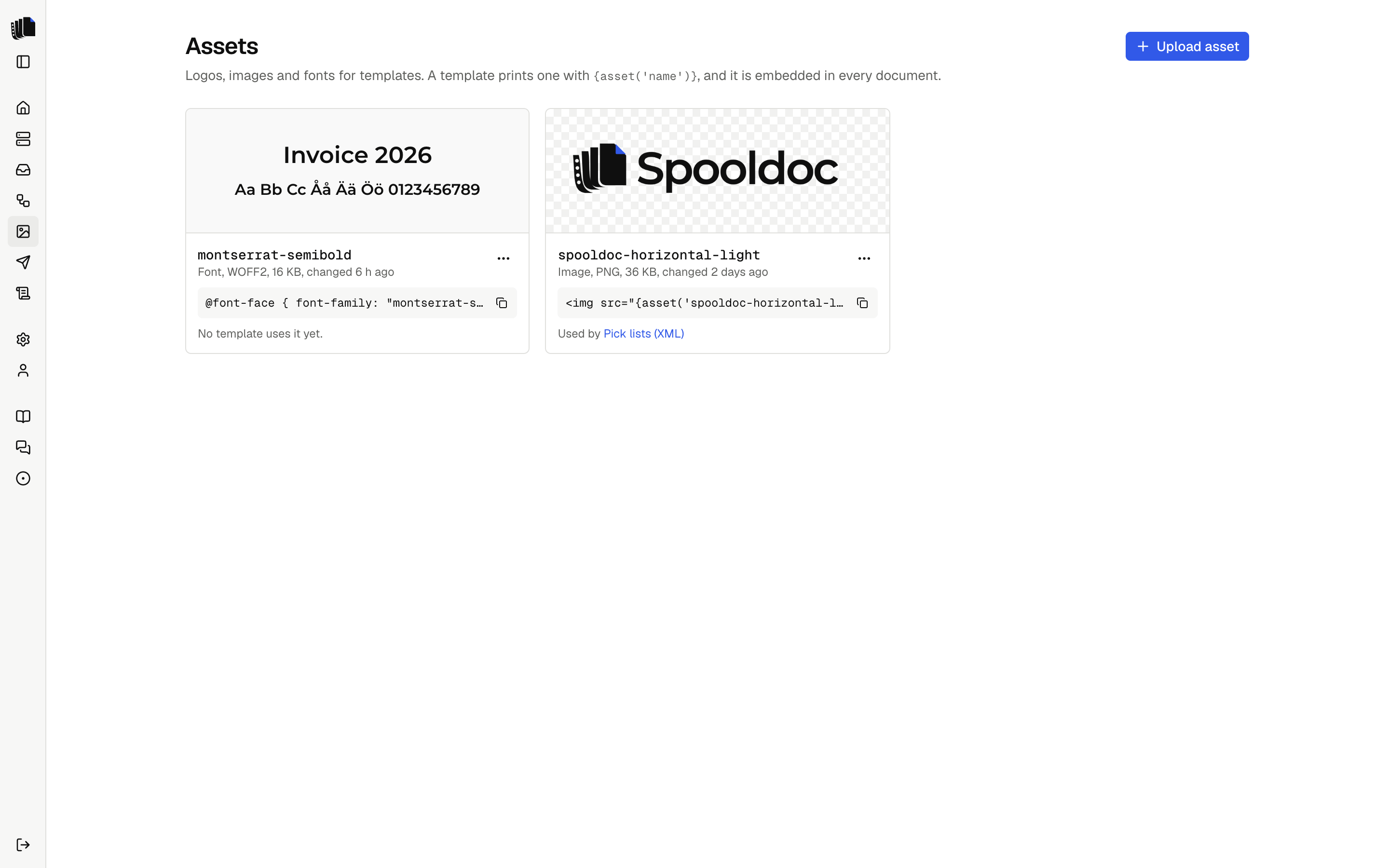
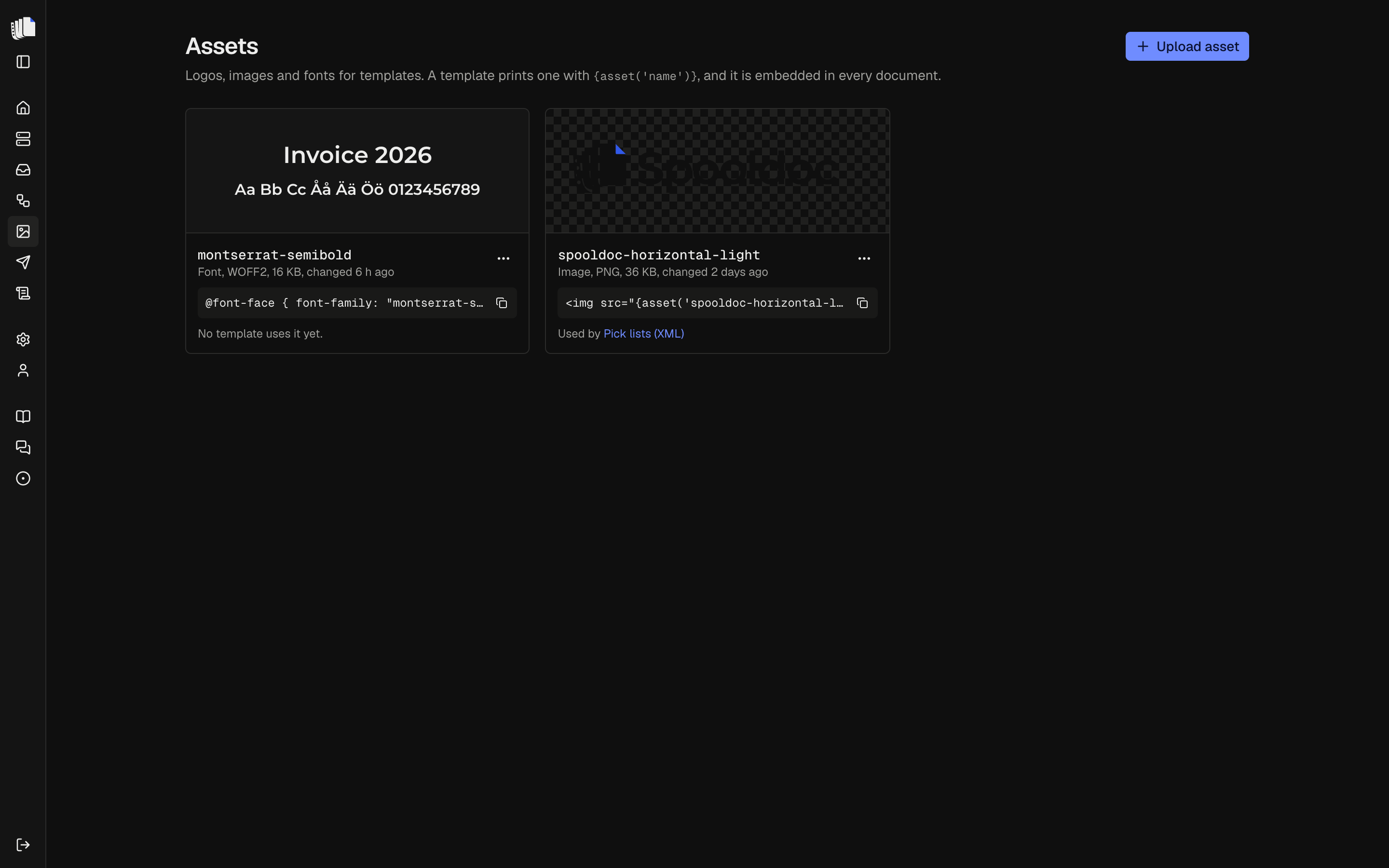
empty. Upload the file on the Assets page instead and print it with
{asset('name')}, which Spooldoc writes into the template as a data URI
before it sends it to Carbone:
<img src="{asset('logo')}" alt="" style="height: 18mm">
<style>
  @font-face { font-family: "Brand"; src: url("{asset('brand-font')}"); }
  body { font-family: "Brand", sans-serif; }
</style>
An asset is an image (PNG, JPEG, GIF, WebP, SVG) or a font (WOFF2, WOFF,
TTF, OTF) of at most 5 MB, named with lowercase letters, digits, dashes
and underscores. The bytes decide the type, not the file name. Every
render carries the asset as base64, so keep logos and fonts small. The
Assets page shows which jobs print each asset, and an unknown name is a
problem the check reports. The fonts the Carbone container has depend on
its image; the full-...-fonts image in the Compose file has a wide set.
PDF layout
A Word template's PDF has the page size, margins, headers and footers set in Word, and an Excel template's follows each sheet's page setup (see The PDF). The rest of this section is about HTML templates.
PDFs are printed on A4 by Carbone's Chromium converter: portrait, or
landscape when the spooled file is wider than 160 columns. A template's
own @page { size: ...; margin: ... } wins. Backgrounds and borders
print. Use page-break-inside: avoid on rows and page-break-before: always between sections as you would for any print stylesheet.
For a header and footer on every page, with page numbers, use Carbone's
<carbone-pdf-header> and <carbone-pdf-footer> elements. They print in
the PDF only: Spooldoc hides them in HTML output.
<carbone-pdf-footer>
  <div style="font-size: 8pt; width: 100%; text-align: center">
    Invoice {d.pg.invoiceNo}, page <span class="pageNumber"></span> of <span class="totalPages"></span>
  </div>
</carbone-pdf-footer>
Files
Each document becomes a file in each of its template's formats, named
after the definition's output.name, such as invoice-260102.pdf,
invoice-260102.html, invoice-260102.docx or invoice-260102.xlsx,
or after the spooled file and a number when there is no name. A file of
the whole spooled file, from an Excel template, is named after the
spooled file: spdinvoice.xlsx. The files of every template but the
first add the template's name: invoice-260102-lines.pdf or
spdinvoice-lines.xlsx for a template named Lines. See
Destinations.
A template with problems fails the run, and the error names the template
and the lines: The "Lines" template has 1 problem. Line 12: ..., or for
a Word template the parts: ... has 1 problem. Body: ..., and for an
Excel template the sheet and cell: ... has 1 problem. Lines!A2: .... A
Word or Excel template whose file is gone fails the run and says to upload
it again. An error from Carbone names the template and the page group, or
the spooled file for a file of the whole spooled file.