Jobs
The job builder, versions, running on demand, watching a queue and what happens to the spooled file.
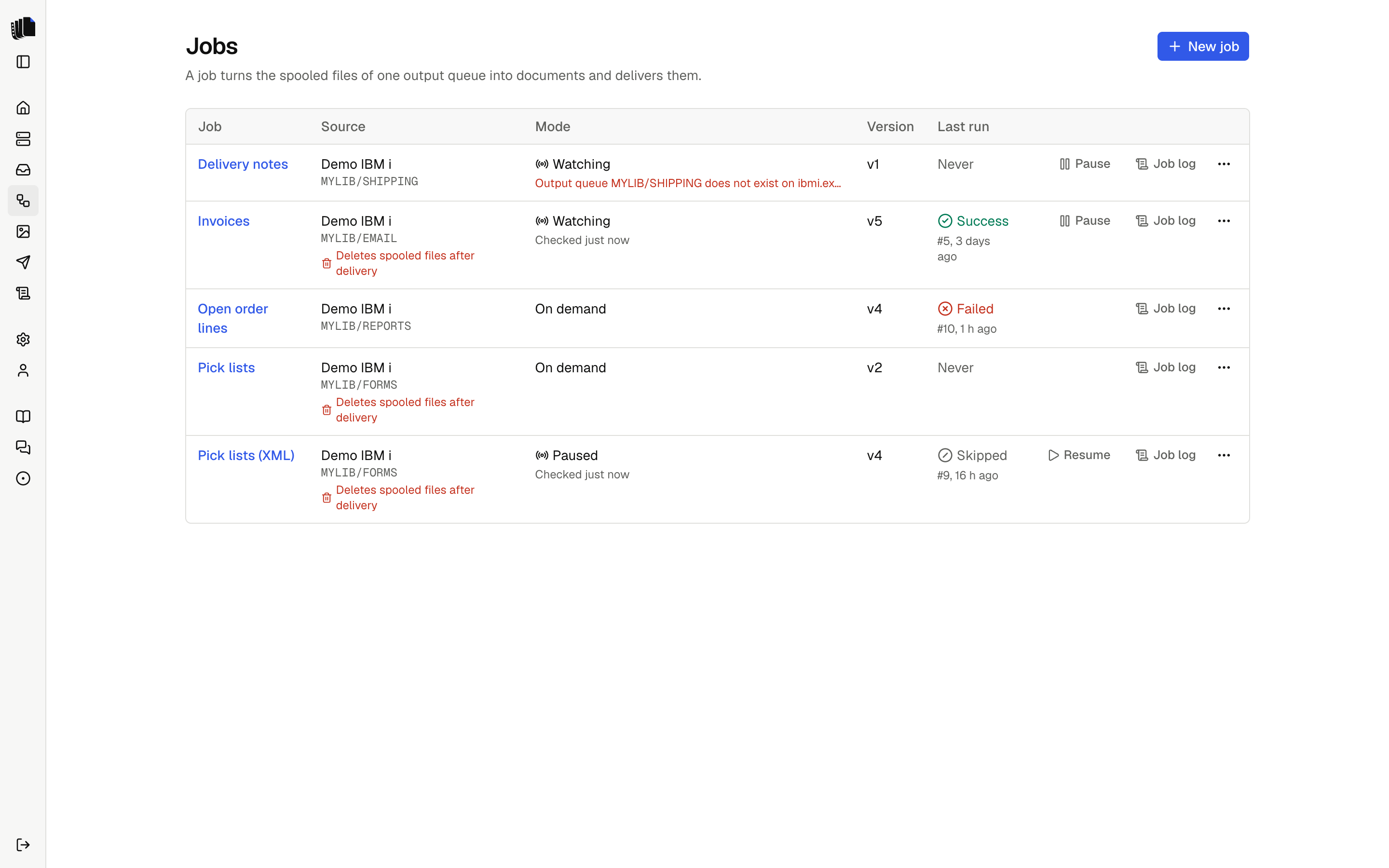
A job is a pipeline from one output queue to a destination. The Jobs page lists them with their server, queue, trigger and last run. A job whose active version or draft no longer matches the job format, after an upgrade for example, is listed with the reason instead of breaking the page. Click a job, or its name, to open it in the job builder. Each row has Job log, and a watching job has Pause or Resume too. The ⋯ menu at the end of the row has Pause or Resume, Job log, and Delete job, which asks first.
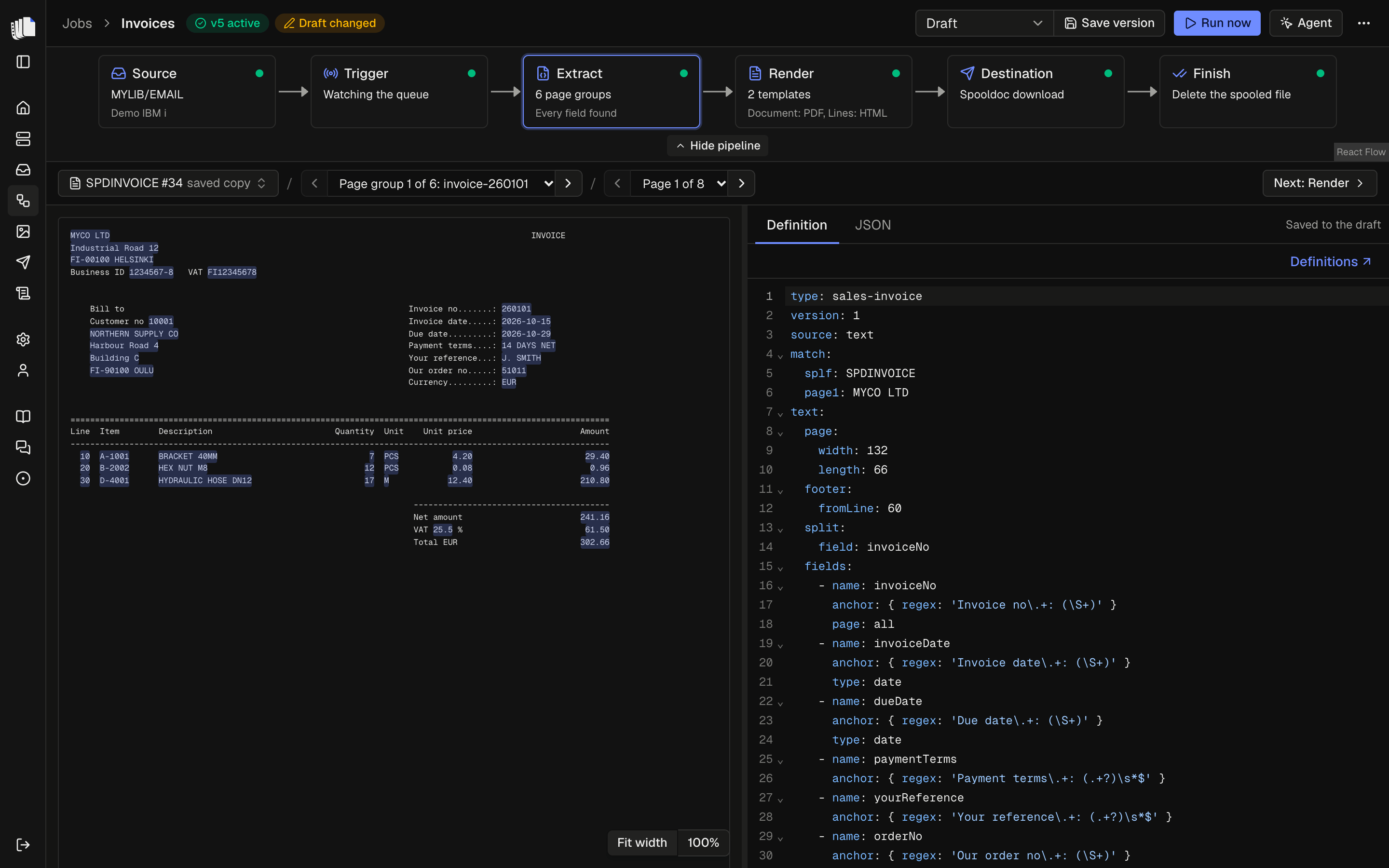
The job builder shows the pipeline as six steps, and each step opens an inspector. Click a step to open it, or use Next and Back to go through them in order. Next sits at the end of each form, and in the bar above the page on Extract and Render. On Finish, Save version takes its place while the draft has changes that are not in the active version. Next turns primary when its step is ready, and Run now turns primary when every step is ready. Only one of them is primary at a time, and Save version on Finish looks as Next would. The draft saves as you type, so moving between steps loses nothing. Hide pipeline under the steps makes more room, and Show pipeline brings them back.
The path at the top of the builder, Jobs and the job name, links back to the Jobs page. To rename the job, click its name, or pick Rename in the More (⋯) menu. Enter or clicking away saves the name, and Escape cancels. Next to the name, the builder shows which version is active and whether the draft has changes.
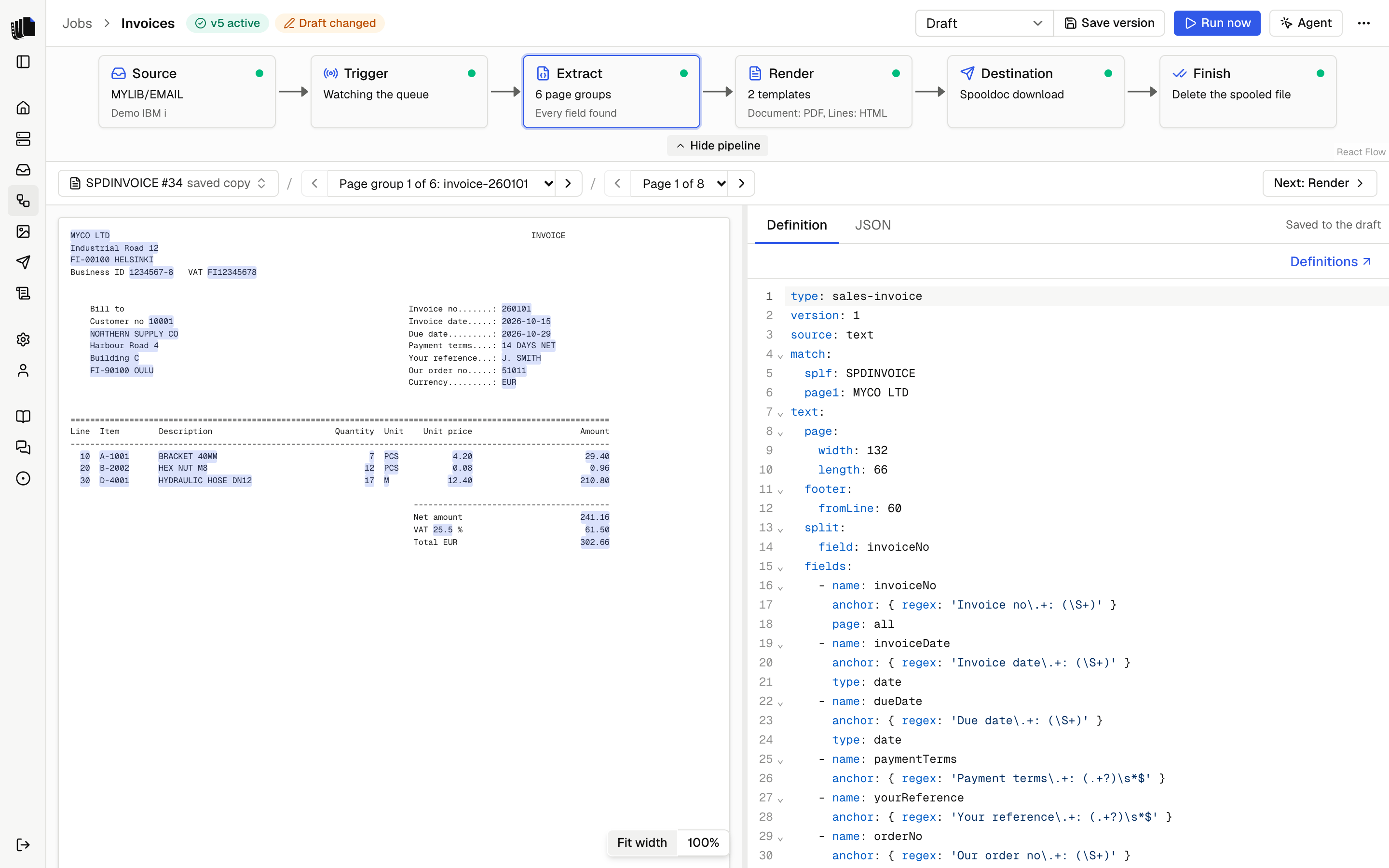
| Step | What you set |
|---|---|
| Source | The server, the output queue, and filters on spooled file name, user data, job name, job user and form type. Each filter is a "contains" match; empty means any file on the queue. |
| Trigger | On demand, or Watching the queue, and whether held files count. See Running on demand and Watching a queue. |
| Extract | The definition: the YAML that turns pages into JSON. |
| Render | The templates: each has a name, HTML or a Word or Excel file, and the formats it makes. The starter template renders every field and table of the definition until you write your own. See Templates. |
| Destination | Where the files go. See Destinations. |
| Finish | What happens to the spooled file after every document was delivered. |
Designing with a sample
The extract and render steps open the workbench: the sample's pages with the field hits highlighted, the definition, the extracted JSON, the template and the rendered document of one page group: the HTML of an HTML template, or the PDF of a Word or Excel template. An Excel template that holds the whole spooled file shows the PDF of every page group at once. Pick a spooled file on the queue as the preview sample; Spooldoc saves a copy in the database, and the workbench shows that copy, marked "saved copy", also after the file leaves the queue. Pick another file to save a new copy. Only drafts have a preview sample, and samples no job uses are deleted with the old runs.
The bar above the workbench shows what you are looking at as a path: the spooled file, then its page group, such as "Page group 2 of 6", then on the extract step the page, such as "Page 3 of 8". Each has previous and next buttons and a list to jump to any one. The page and the page group follow each other: picking a page group shows its first page, and paging into another page group picks it. Fit width and 100% in the corner of the page fit it to the pane or show its actual size. Hover the spooled file for when the copy was saved, its page count, page size and CCSID.
The agent sits beside the workbench. It writes the definition and the template to the draft, reads the extraction report and renders the result, and the page view, JSON and preview update as it works. Everything it writes can be edited by hand.
Templates
The definition splits a spooled file into page groups, such as one invoice each, and every page group becomes a document through every template of the job. A new job has one template, Template 1, that makes a PDF. Add another when the same data needs a second document, for example an invoice as a PDF and its lines as a separate HTML page.
On the render step the path ends at the template that the editor and the preview show, such as "Document". The menu next to it has the files the template makes, a Make it item for each other kind (HTML, Word or Excel template), Rename, Remove and Add template. An HTML template makes PDF and HTML files; a Word template makes PDF and DOCX files; an Excel template makes XLSX and PDF files, and the menu says so under each kind. Switching the kind starts the template from the other kind's starter, and asks first when it has HTML or a file of its own; saved versions keep theirs. It then makes the files a new template of that kind makes: PDF for an HTML template, DOCX for a Word template and XLSX for an Excel template. The switch says which files it stops making: an HTML template that makes PDFs makes XLSX files as an Excel template, and you can turn PDF back on in the menu.
An Excel template's menu also has Each file holds: Whole spooled file (the default), one file per spooled file with a row per line, or Page group, one file per page group. See What each file holds. The last template cannot be removed. The pipeline shows one template as its kind and formats, and several as "2 templates" with each name and its formats.
The first template's files are named after the document, as in
invoice-260101.pdf, or after the spooled file for an Excel template of
the whole spooled file, as in spdinvoice.xlsx. Every other template adds
its name, so a Lines template gives invoice-260101-lines.html. Two templates cannot have the
same name.
Versions
The job you edit is the draft. Saving a version takes a fixed copy of the draft, numbered from 1, with a note of what changed. Runs use the active version, which is the newest unless you activate an older one, and every run is logged against the version it used. Restoring a version copies it back into the draft. Pills beside the job name show the active version, or Draft only before the first one, and Draft changed when the draft differs from it, so you know what runs and what you are still working on.
A version must be complete: a server and queue, a definition, templates with different names, and a destination, plus the queue to move files to when the finish action is Move.
Running on demand
Run now takes the spooled files you pick from the queue through the
active version and shows the runs in the job log. A file the
definition's match rules do not accept ends as skipped and is left
alone. Retry in the job log runs the same file again with the active
version.
Run now lists the ready files the job has not processed. With held files
included in the trigger step, it lists held ones too, for programs that
print with HOLD(*YES). A switch in Run now shows the rest of the queue.
Other jobs on the same queue
When other jobs read the same output queue, the trigger step names each one, says whether it is watching or runs on demand, and what its finish step does. A file that matches the filters of more than one job can be run by each, and each finish action applies to it. A watching job runs a file as soon as it is ready, so an on-demand job on the same queue may find it already held, moved or deleted. Use the filters on the Source step to keep the jobs apart. Jobs with no active version and paused watchers are not named.
Watching a queue
With the trigger set to Watching, the queue watcher runs the job for every new ready spooled file, in one of two ways:
- Real time. The output queue sends an entry to a data queue when a
spooled file becomes ready, and Spooldoc reads that data queue. Set up
real-time in the trigger step creates a data queue in the queue's library
and attaches it with
CHGOUTQ DTAQ(...). When the queue already sends to a data queue, another program probably reads it, so Spooldoc leaves the queue alone and polls; you can let Spooldoc read that data queue instead, as long as the server has no other one. Switch to polling detaches a data queue Spooldoc created, or stops reading one that was there before. - Polling. Any other queue is listed every poll interval, 30 seconds by default. Real-time queues are polled too, every safety check interval, in case an entry was missed. Both intervals are under Settings.
When reading the data queue fails, for example because the data queue was deleted or the connection dropped, the queue is polled at the poll interval meanwhile and Spooldoc keeps trying to read it again. The trigger step and Needs attention on the Home page say why and since when, and the server log has each attempt. Once reading works again, the note goes away. After a dropped connection, Spooldoc opens a new one by itself, so real-time watching comes back without a restart; see Connection status.
Every run renders with Carbone. While Carbone does not work, the watcher starts no runs: new spooled files wait on the queue, and the trigger step, the Jobs list and Needs attention say "New spooled files wait until Carbone works again", with the reason. Before each file the watcher looks at the last check of Carbone, and checks again when the last check failed more than a minute ago. Once Carbone works, every waiting file runs, oldest first, and the note goes away. A render that finds Carbone down fails that one run, which you can retry from the Job log; the files after it wait.
Two more switches:
- Backlog. When watching starts, Spooldoc takes stock of the queue. Leave them for Run now ignores the files already there; Run them too runs them.
- Held files. By default the watcher takes ready files. With held files included it takes held ones too, which is how a queue with no writer is usually set up.
Pause a job, on the Jobs list or the trigger step, to stop watching without losing anything; the files that arrive meanwhile are left for Run now, or run when watching resumes with Backlog on. Each file runs once: Spooldoc remembers which spooled files a job has processed, even after the runs are deleted.
The finish step
After every document of a spooled file was delivered, the finish step does one of:
| Action | What happens |
|---|---|
| Hold (default) | HLDSPLF, so the file stays on the queue and is not printed. |
| Move | The file is moved to another output queue, for example an archive queue. |
| Delete | The file is deleted from the IBM i. This cannot be undone. |
| Leave as is | Nothing. With a watcher, Spooldoc still runs the file only once. |
Delete is the one action that destroys something on the IBM i, so
Spooldoc asks before it starts. Saving a version as the active one, or
making a saved version active, when that version deletes and the active
version does not, shows which queue's files will be deleted and needs a
second click. The API answers 409 with confirm: "delete" until the
request carries confirmDelete: true. Once a deleting version is active,
later deleting versions need no confirmation. The Jobs list marks a job
whose active version deletes its spooled files.
A finish that fails leaves the run with the status warning: the documents are delivered and the spooled file is where it was. Previews only read.