Getting started
Install Spooldoc, create the first account, add an IBM i and build the first job.
What you need
- An IBM i 7.4 or later, a user profile that can read the output queues you care about, and network access from the Spooldoc host to the host server ports jt400 uses: 449 and 8470 to 8476. See Network.
- Docker, or Node 22 with a JDK 17, Postgres and a Carbone server to run from source.
- Optional: an API key for a model provider, so the agent can write definitions and templates. Spooldoc works without one.
No demo queues yet? demo-spool creates three output queues and prints invented invoices, pick lists and reports on any IBM i, including a free PUB400 account.
Install
With Docker Compose
git clone https://github.com/Strom-Capital/spooldoc.git && cd spooldoc
printf 'BETTER_AUTH_SECRET=%s\nSPOOLDOC_SECRET_KEY=%s\n' "$(openssl rand -base64 32)" "$(openssl rand -base64 32)" > .env
docker compose up -d
This pulls the published image (web app and Java runtime) and starts it
with a Postgres database and a Carbone server, which renders
the documents; docker compose up --build -d builds the web app from the
clone instead. Keep the .env file: SPOOLDOC_SECRET_KEY
encrypts the saved IBM i passwords and model keys, and with another key
they must be entered again. See Deployment for the
variables, a prebuilt database, backups and upgrades.
From source
pnpm install
docker compose up -d db                        # Postgres on localhost:5433
cp apps/web/.env.example apps/web/.env.local   # then set DATABASE_URL, BETTER_AUTH_SECRET and SPOOLDOC_SECRET_KEY
pnpm dev
pnpm dev builds the packages in watch mode and starts the web app on
port 3000, or on the next free port when 3000 is taken. Rendering needs a
Carbone server; docker run -d -p 4000:4000 carbone/carbone-ee:full-5.15.5-fonts
starts one, which you then set as http://localhost:4000 under Settings,
Rendering. See Contributing for the tools and the tests.
First run
- Create the first account. Open http://localhost:3000. The login page offers sign-up until the first account exists; after that sign-up is closed.
- Connect Carbone. On Settings, under Rendering, copy Spooldoc's
public key into
CARBONE_AUTHENTICATION_PUBLIC_KEYin.env, rundocker compose up -d carboneand click Check again. See Carbone. - Add a server. On Servers, enter a name, the host, a user profile and its password. Optionally list the libraries to show queues from. The password is stored encrypted. See Servers.
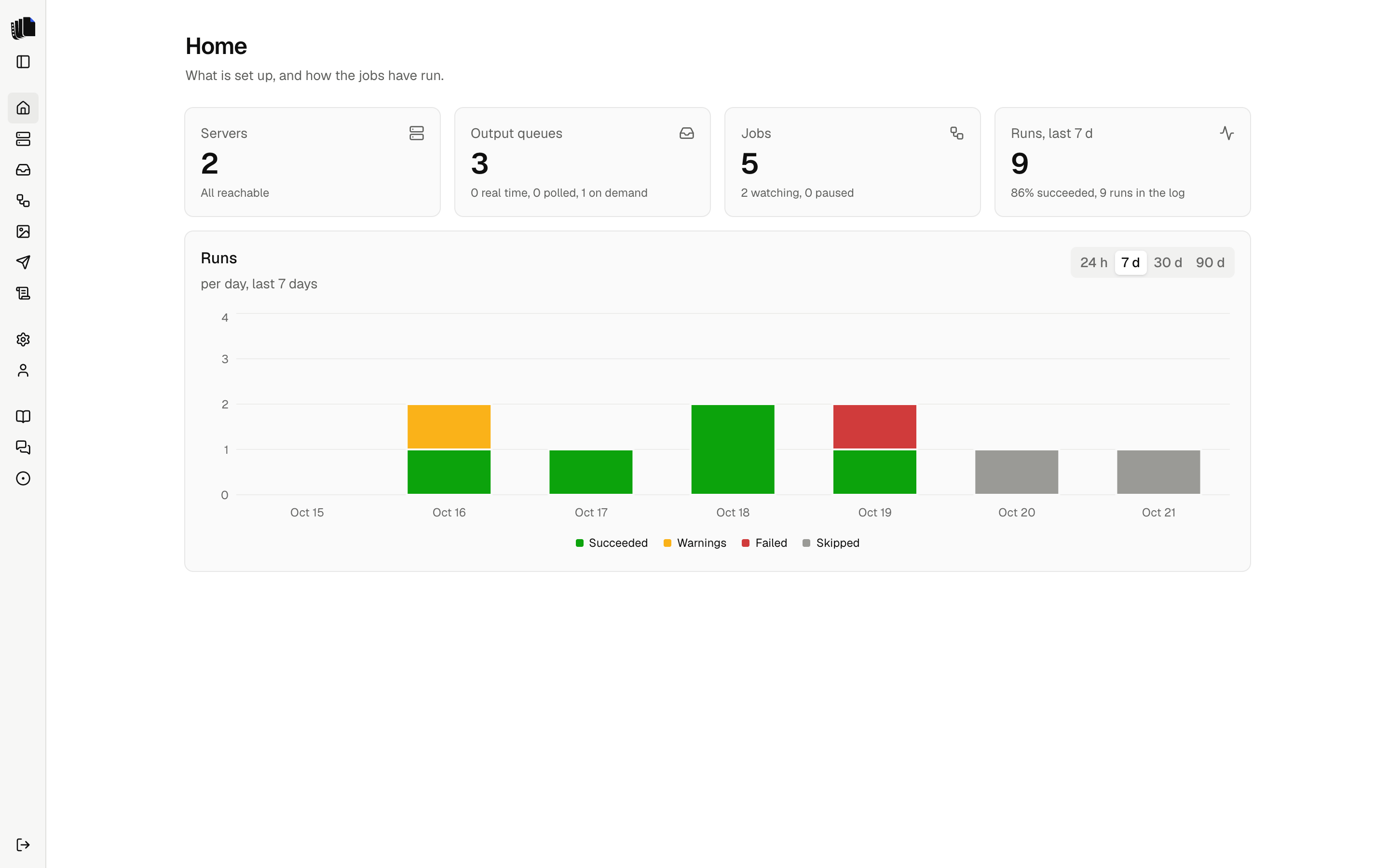
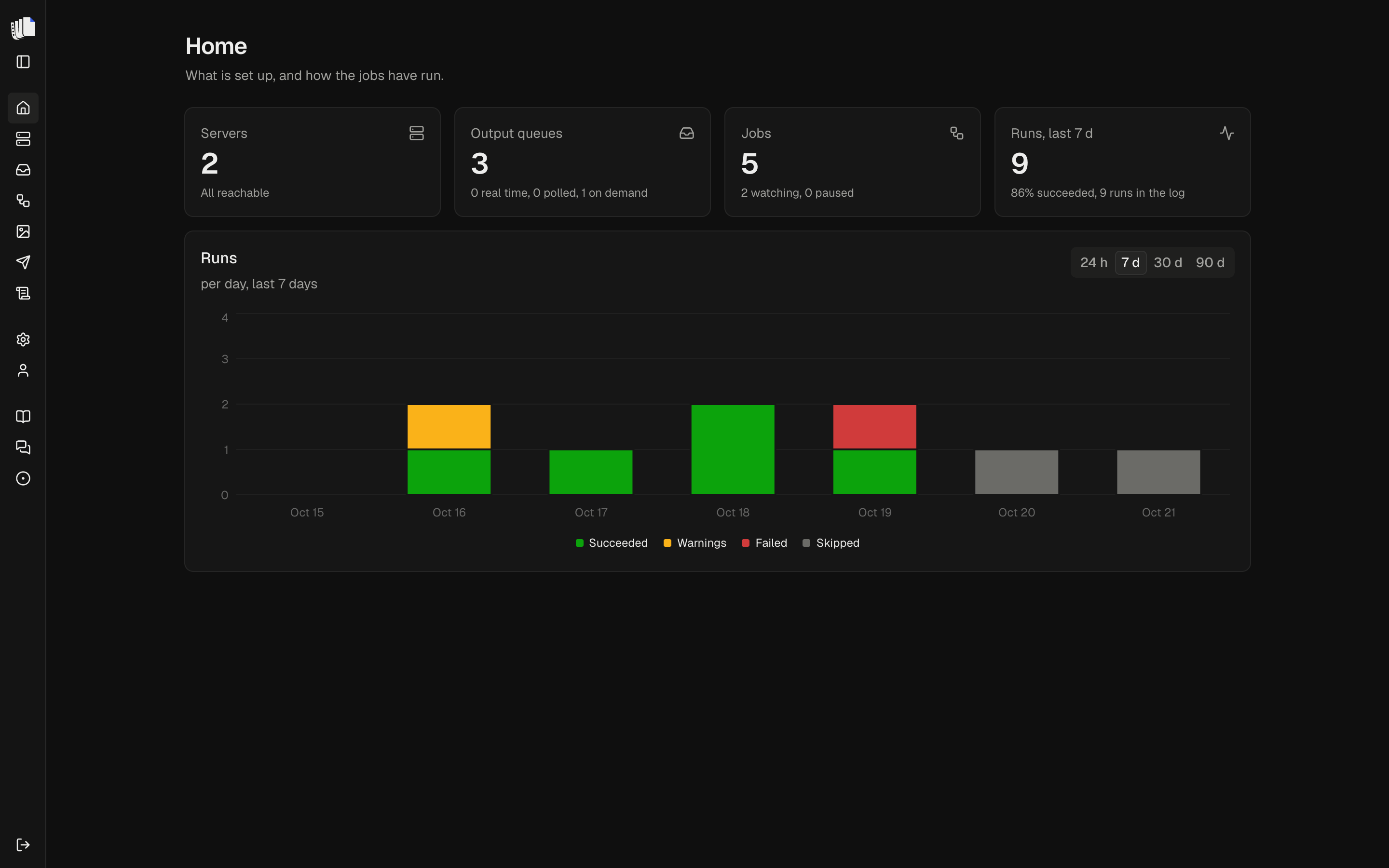
- Open the queues. On Queues, pick the server. Search or sort, hide the queues you do not need, and open one to see its spooled files and their pages. See Queues.
- Start a job. From a queue, choose New job. The job builder shows the pipeline: source, trigger, extract, render, destination, finish. Next at the end of each step opens the one after it. Pick a spooled file on the queue as the preview sample.
- Let the agent propose. With a model set under Settings, ask the agent for a definition. It reads the sample pages, writes a YAML definition, reads the extraction report and fixes missing fields, then asks whether you want an HTML or a Word template, writes it and renders it. The page view, the JSON and the preview update as it works. Without a model, write the definition by hand; the starter template renders every field and table. See Definitions and Templates.
- Pick a destination. Spooldoc download keeps the files in Spooldoc. An IFS folder, added on the Destinations page, writes them to the IBM i. See Destinations.
- Save a version and run it. Runs use the active version. Run now takes one spooled file from the queue; Watch the queue runs every new one, in real time through a data queue or by polling. See Jobs.
- Check the job log. Every run shows its steps, errors and the delivered files. See Job log.
Not sure what a button does? Rest the pointer on it, or move to it with Tab. A short hint says what it does, what it changes, and why it is disabled when it is.
Next steps
- Configuration: the default code page, allowed hosts, the server log.
- Security: what the model receives, what the database holds.
- FAQ: the questions that come up first.