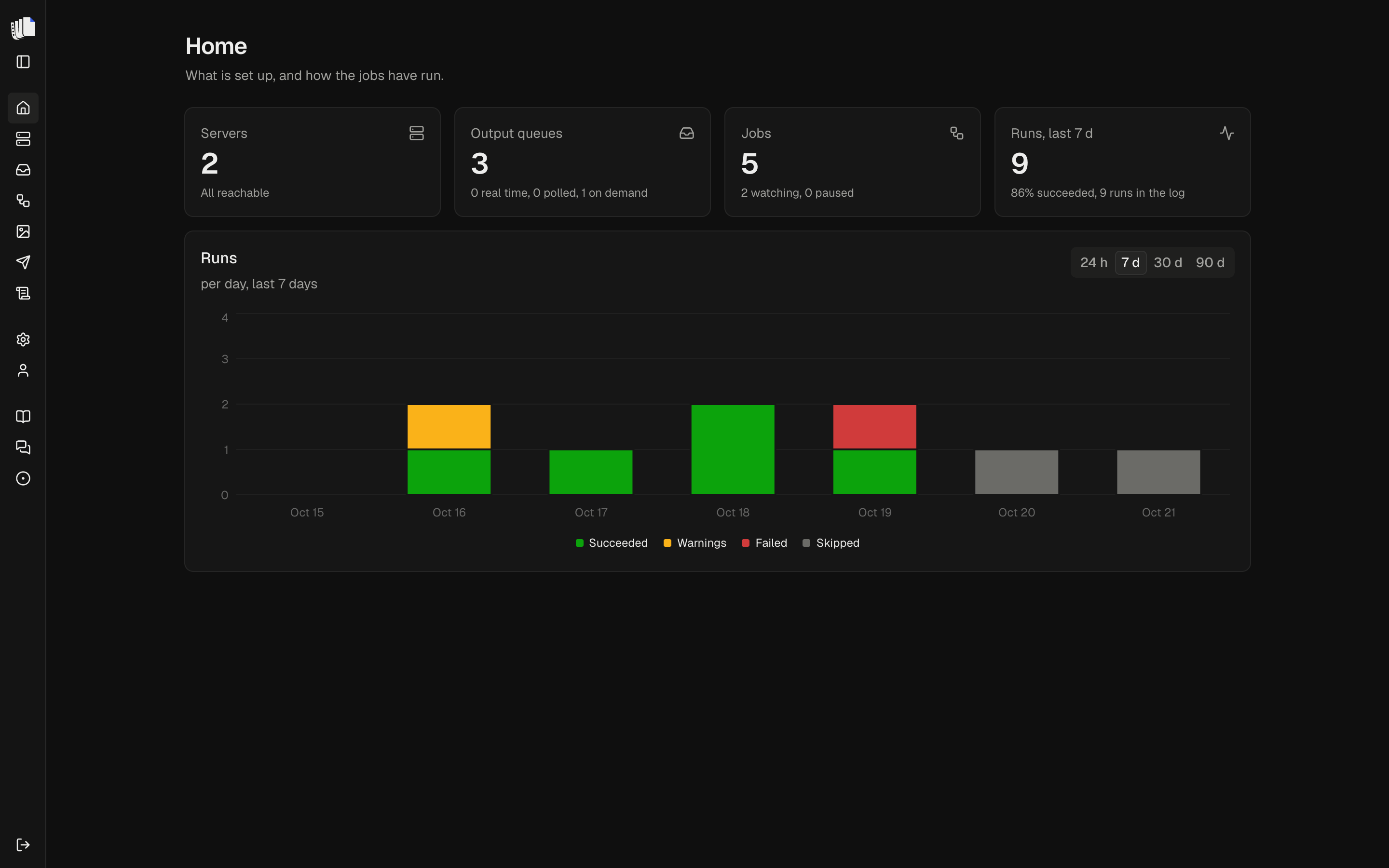
What Spooldoc does today

Each feature here works in the latest release. The guides have the details, and the release notes say what changed.

Servers and queues

Spooldoc reads what your programs already print. It connects through jt400 over the host server ports, so nothing is installed on the IBM i and no program changes.

Add an IBM i with a host, a user profile and its password. Spooldoc signs on when you save, so a wrong host or password shows up at once. The password is stored encrypted.

The Queues page lists the output queues of a server with their ready, held and total files. Search, sort and hide the queues you never need. Open a queue to list its spooled files, and look at any of them page by page.

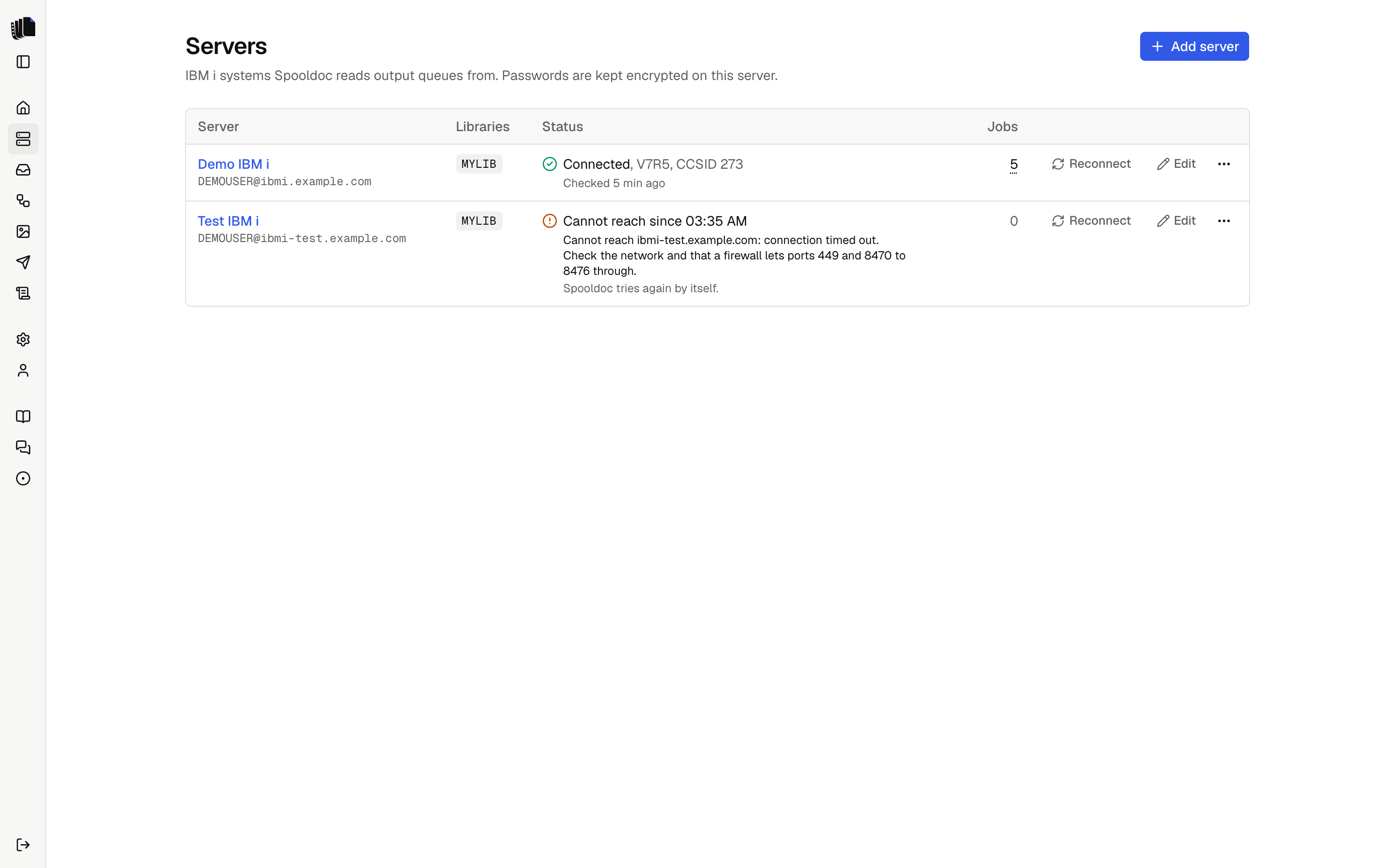
When a server cannot be reached, its status says why and what to check, and it shows under Needs attention on the Home page.
Read the Servers guide and Queues

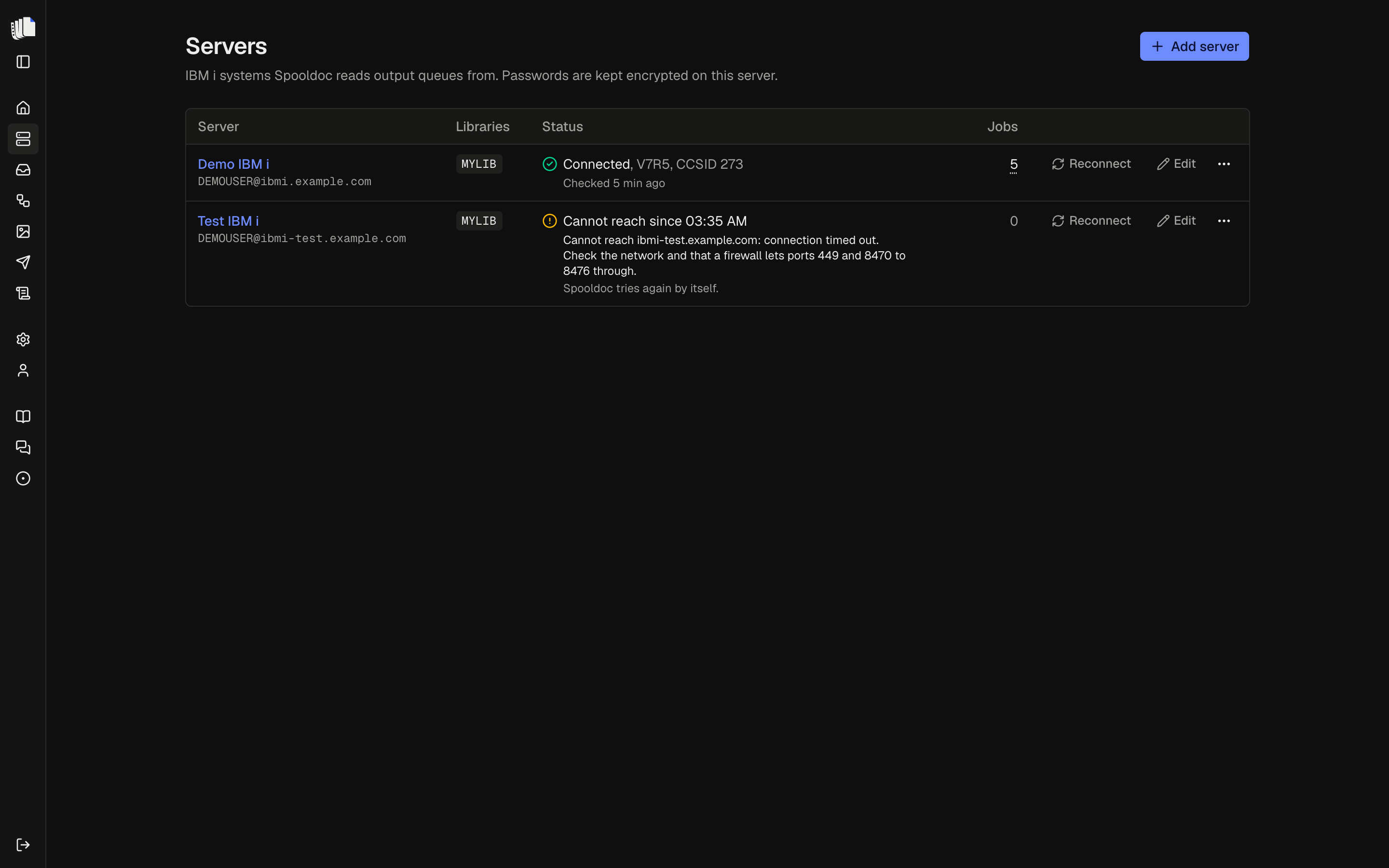
The Servers page with two servers: one connected, with its OS version and CCSID, and one that cannot be reached, with the reason and what to checkThe Servers page with two servers: one connected, with its OS version and CCSID, and one that cannot be reached, with the reason and what to check

Definitions in YAML

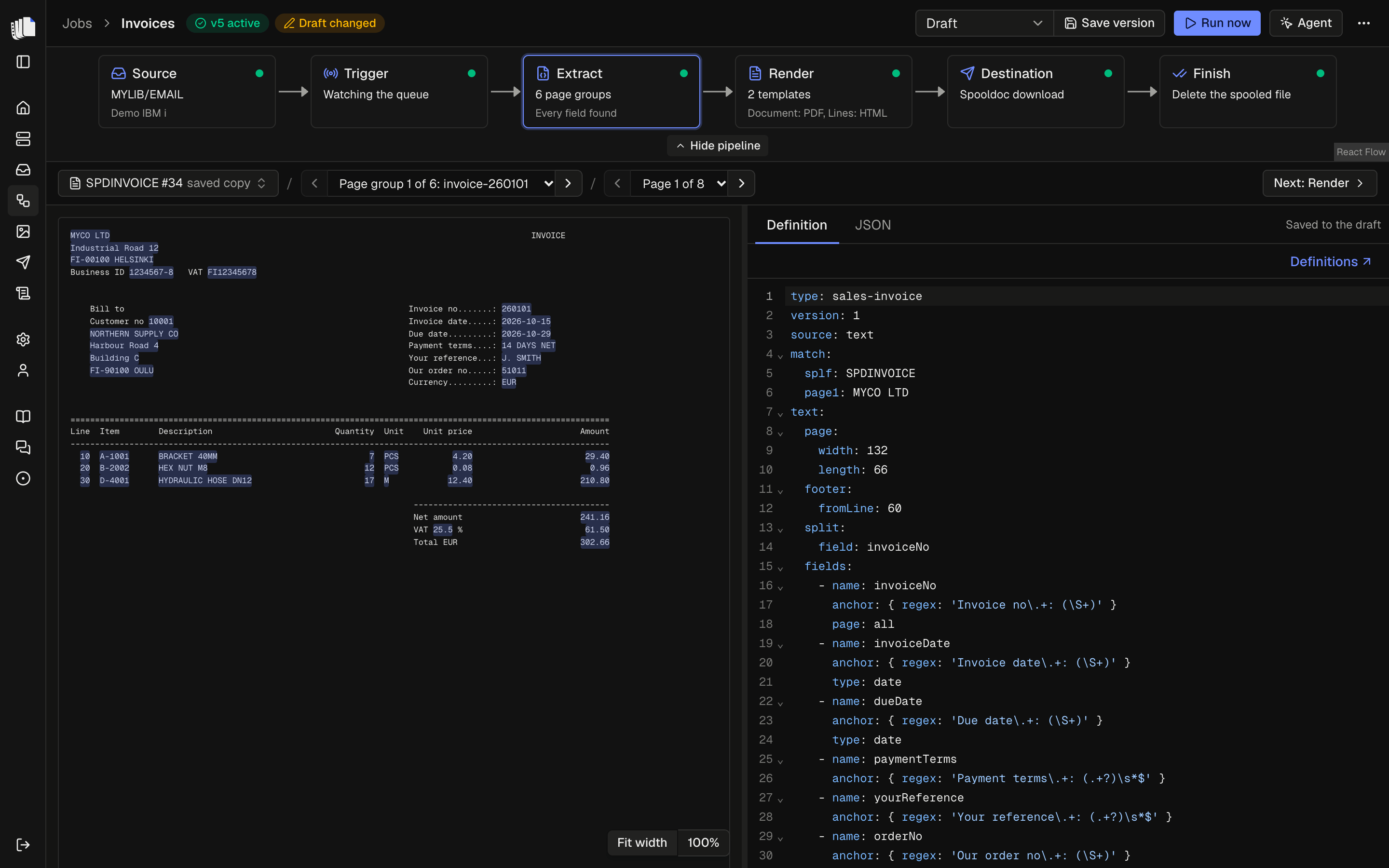
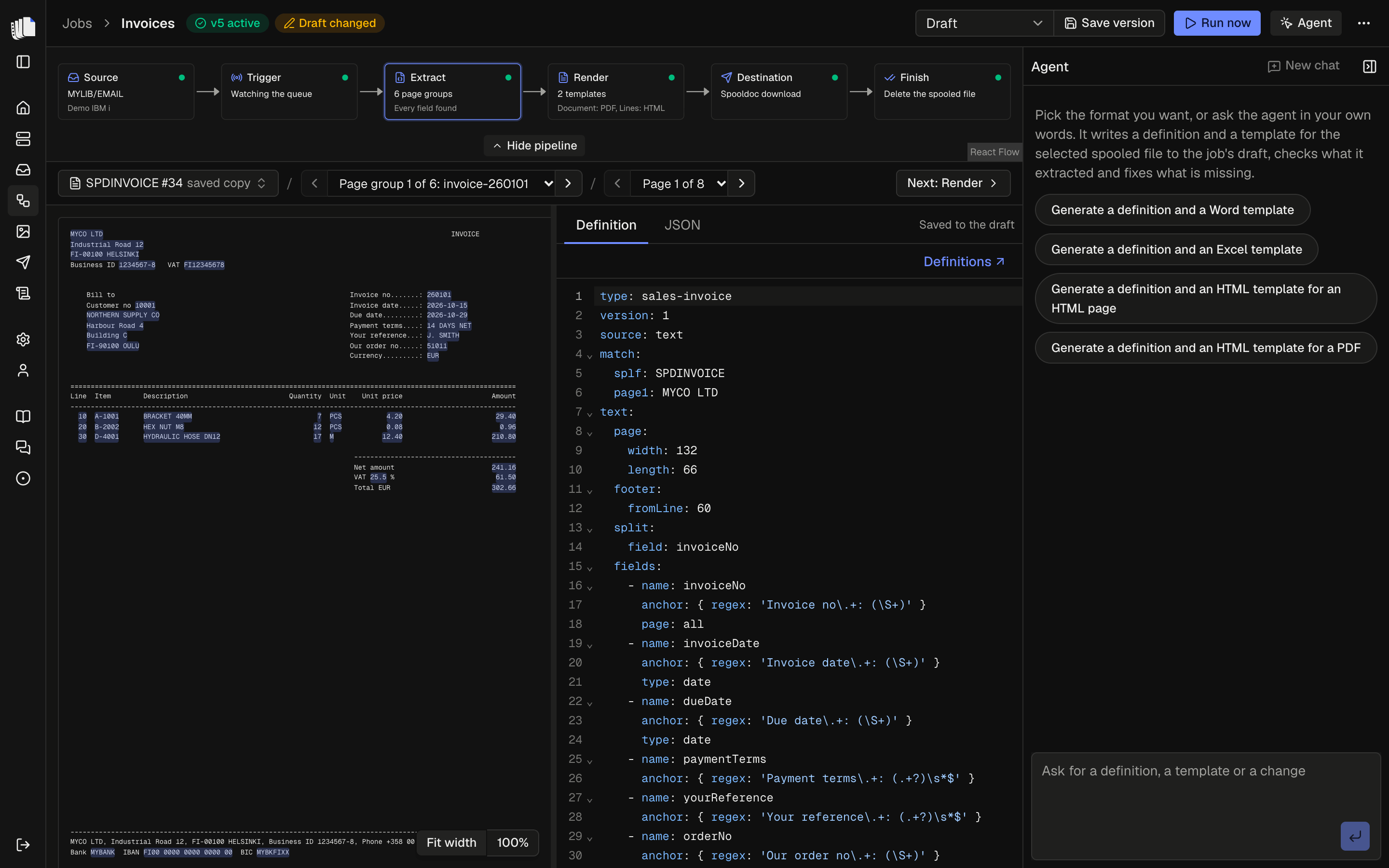
A definition is a short YAML document that reads the pages of a spooled file into JSON. Fields are found by label, pattern or position. Tables, multi-line records and split keys cover page groups printed back to back, such as one invoice each. XML in a spooled file is read too.

Reading and layout stay apart. A template lays out the JSON and never sees lines and columns. A new look is a new template, and a moved column is one fix in the definition.

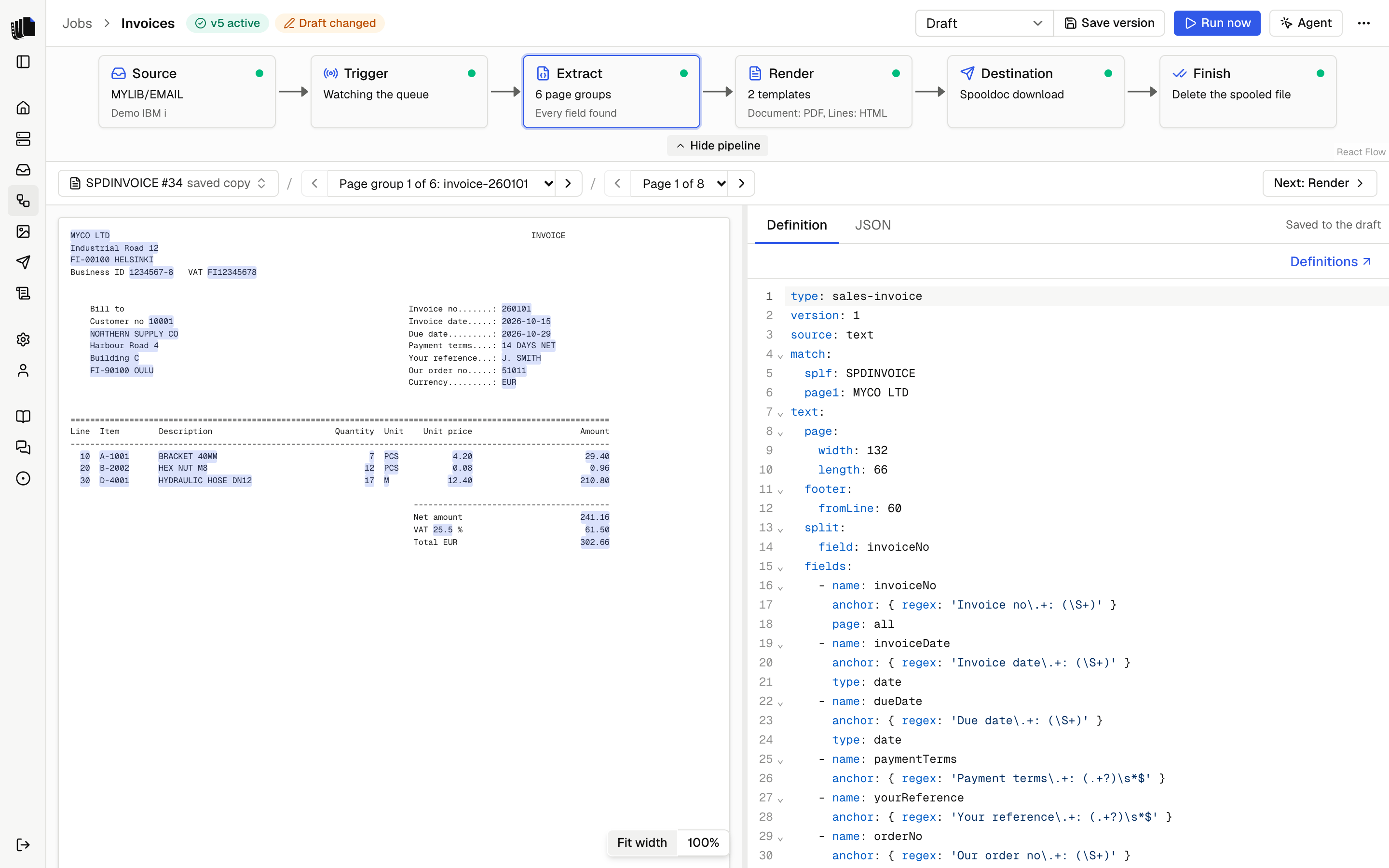
The workbench checks the YAML as you type and highlights every field it finds on the page. You check each value next to the line it came from, before anything is rendered.

Read the Definitions guide

type: sales-invoice
version: 1
source: text
match:
  splf: SPDINVOICE
  page1: MYCO LTD
text:
  page:
    width: 132
    length: 66
  split:
    field: invoiceNo
  fields:
    - name: invoiceNo
      anchor:
        regex: 'Invoice no\.+: (\S+)'
      page: all
    - name: invoiceDate
      anchor:
        regex: 'Invoice date\.+: (\S+)'
      type: date
The job builder with the extract step open: six pipeline steps across the top, the sample page with field hits highlighted on the left and the definition editor on the rightThe job builder with the extract step open: six pipeline steps across the top, the sample page with field hits highlighted on the left and the definition editor on the right

Templates you already know

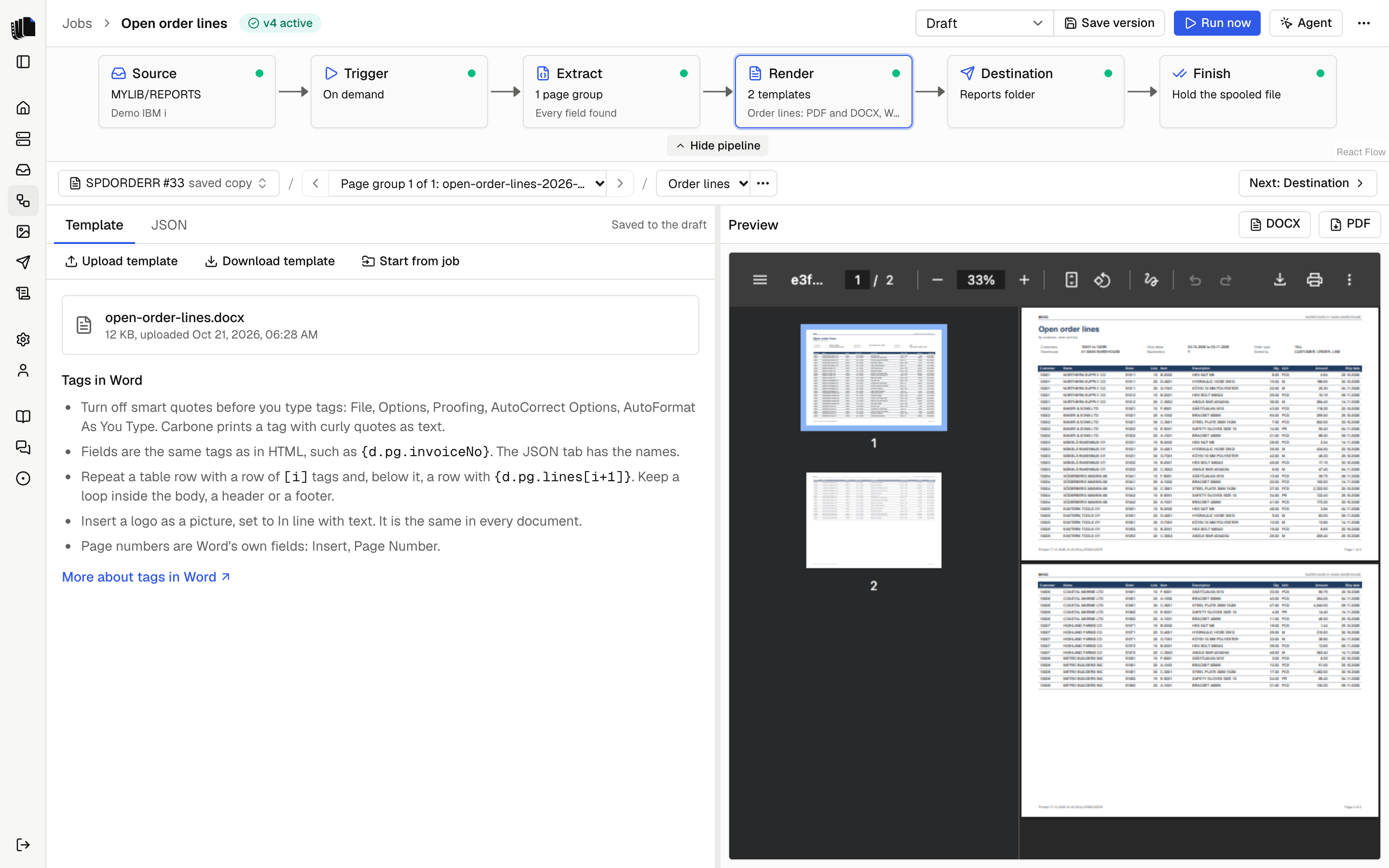
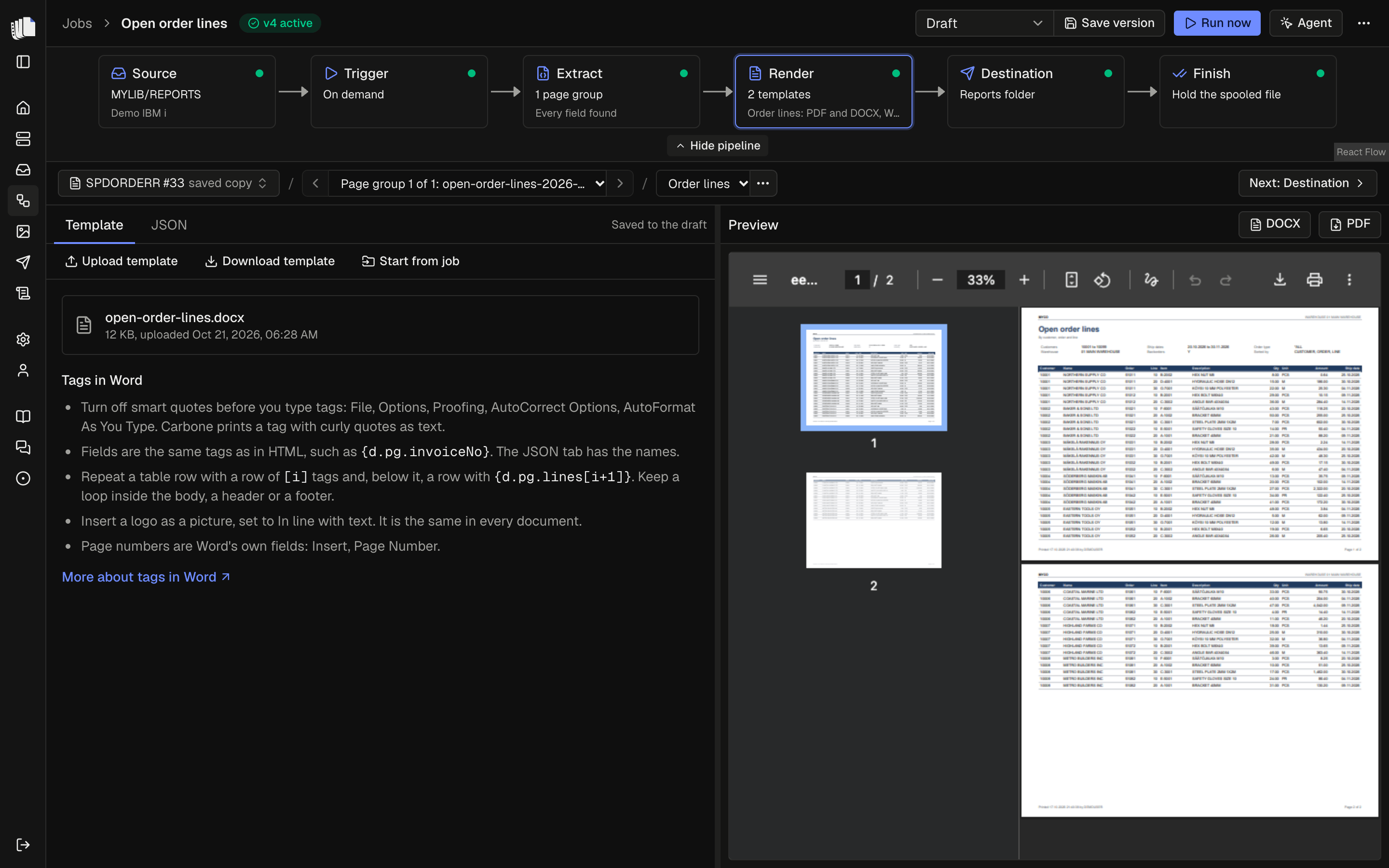
A template is an HTML page, a Word document made in Word or an Excel workbook made in Excel, with Carbone tags such as {d.pg.invoiceNo}. Each page group becomes a document through every template of the job, in that template's formats.

Upload a Word or Excel template, or let the agent design one. An Excel template can make one sheet of the whole spooled file, a row per line, to sort, filter and sum.

Spooldoc checks every tag against the definition before it renders. A Carbone server of your own or Carbone Cloud renders the documents. Logos, images and fonts are uploaded once, as assets.

Read the Templates guide and Carbone

The render step of a job with a Word template: the uploaded .docx and the tips for tags in Word on the left, and the PDF preview on the rightThe render step of a job with a Word template: the uploaded .docx and the tips for tags in Word on the left, and the PDF preview on the right

The agent

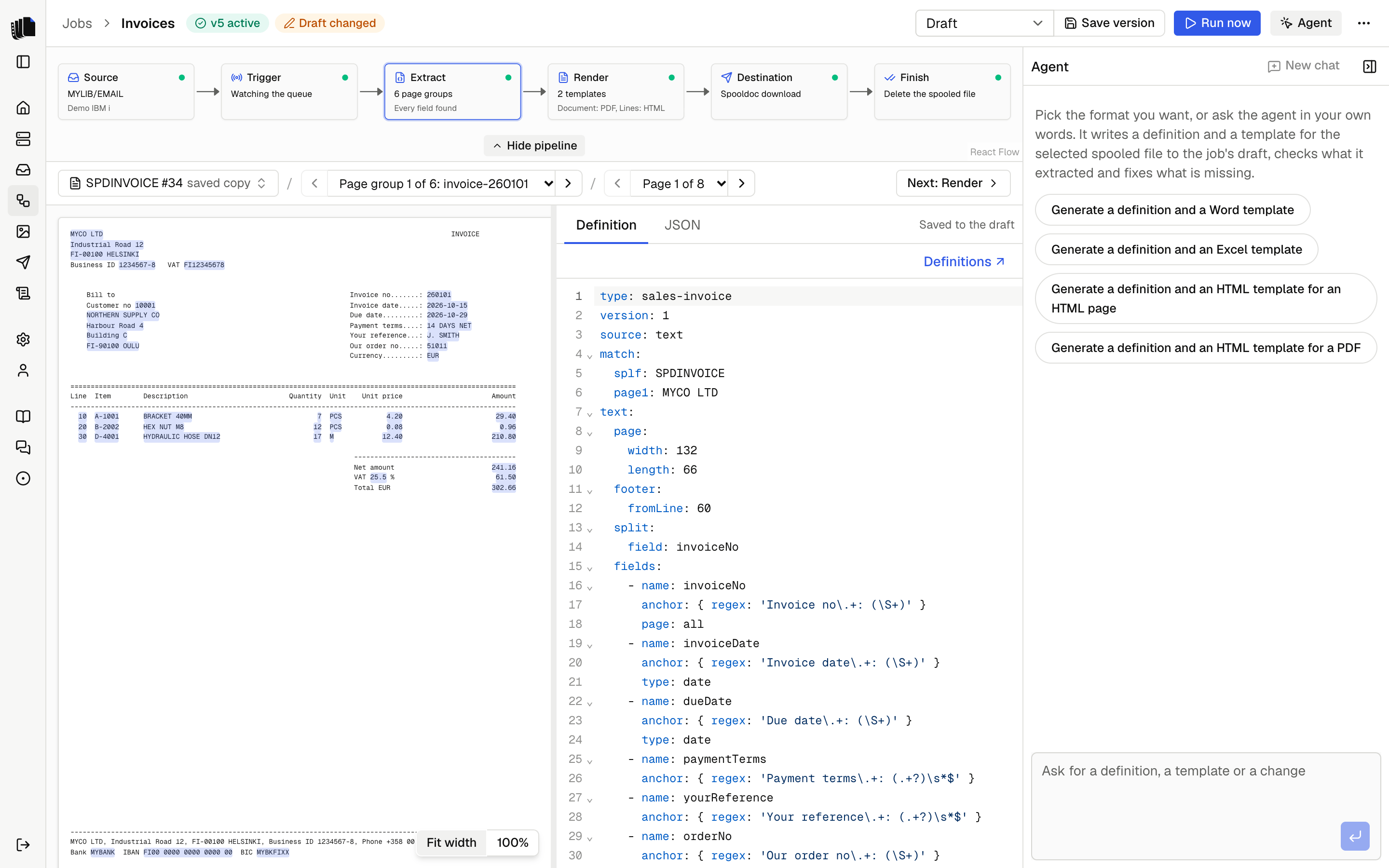
The agent sits beside the job builder. From a sample spooled file it writes the definition, reads the extraction report and fixes what is missing. Then it writes a template and renders it: HTML, or a Word or Excel template it designs or edits, looking at every page it renders.

It uses an AI model you choose: Anthropic, Google, OpenAI, OpenRouter, Vercel AI Gateway or a local model behind an OpenAI-compatible endpoint. Spooldoc works without a model.

Nothing it writes goes live until you save and activate a version, and none of its tools reaches the IBM i. With masking on, the model sees the layout and not the values. A local model keeps the values on your network.

Read the Agent guide

The agent panel beside the workbench, with the suggested prompts and the message boxThe agent panel beside the workbench, with the suggested prompts and the message box

Jobs as pipelines

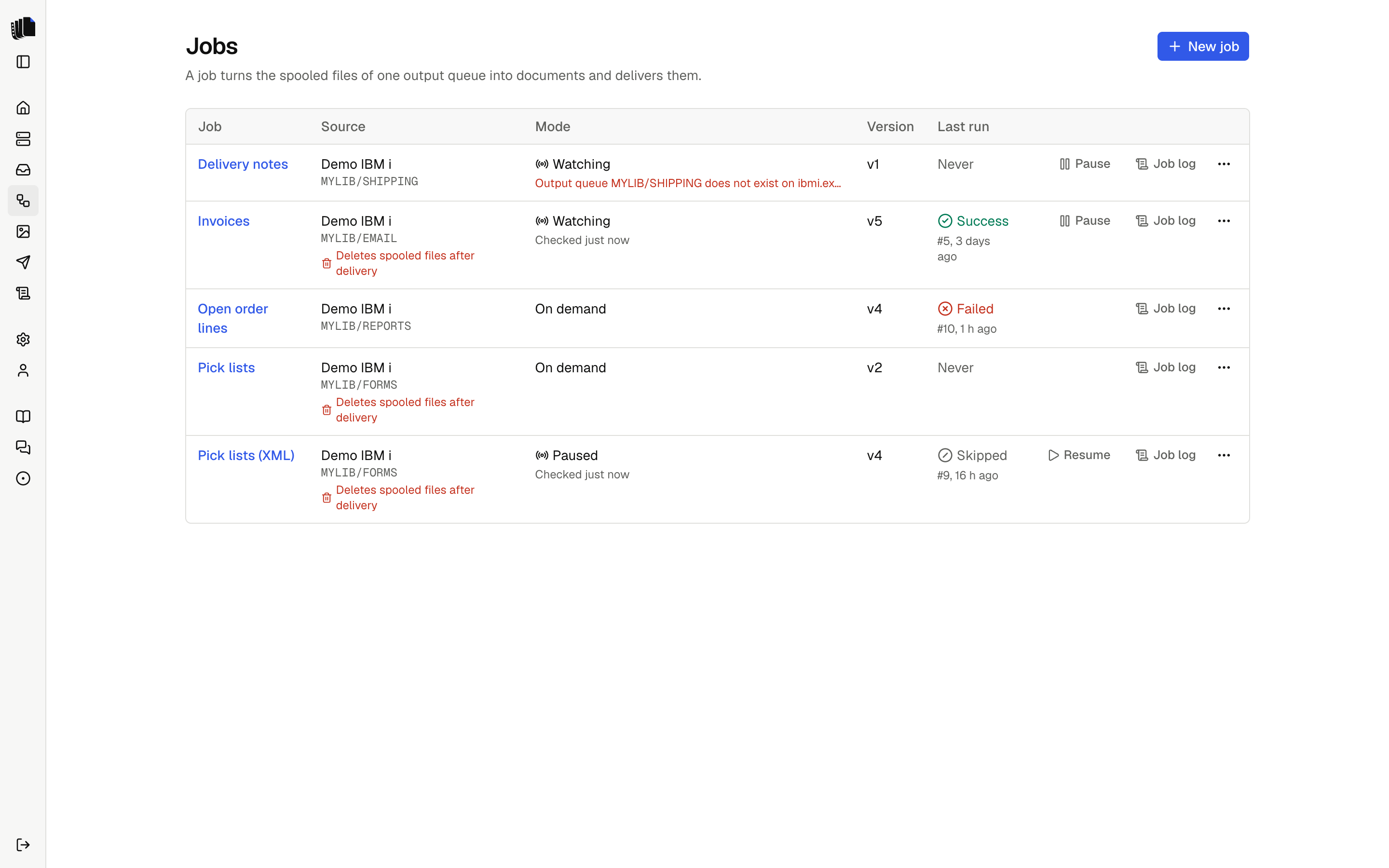
A job takes the spooled files of one output queue to a destination. The job builder shows it as six steps: source, trigger, extract, render, destination and finish. The draft saves as you type.

Saving a version takes a fixed copy of the draft, with a note of what changed. Runs use the active version, and every run is logged against the version it used. Restore an older version to go back.

Run a job on demand on the files you pick, or let it watch the queue. Watching works by polling, or in real time through a data queue that Spooldoc creates only when you turn real-time watching on. When the documents are delivered, the finish step holds, moves, deletes or leaves the spooled file. Delete asks first.

Read the Jobs guide

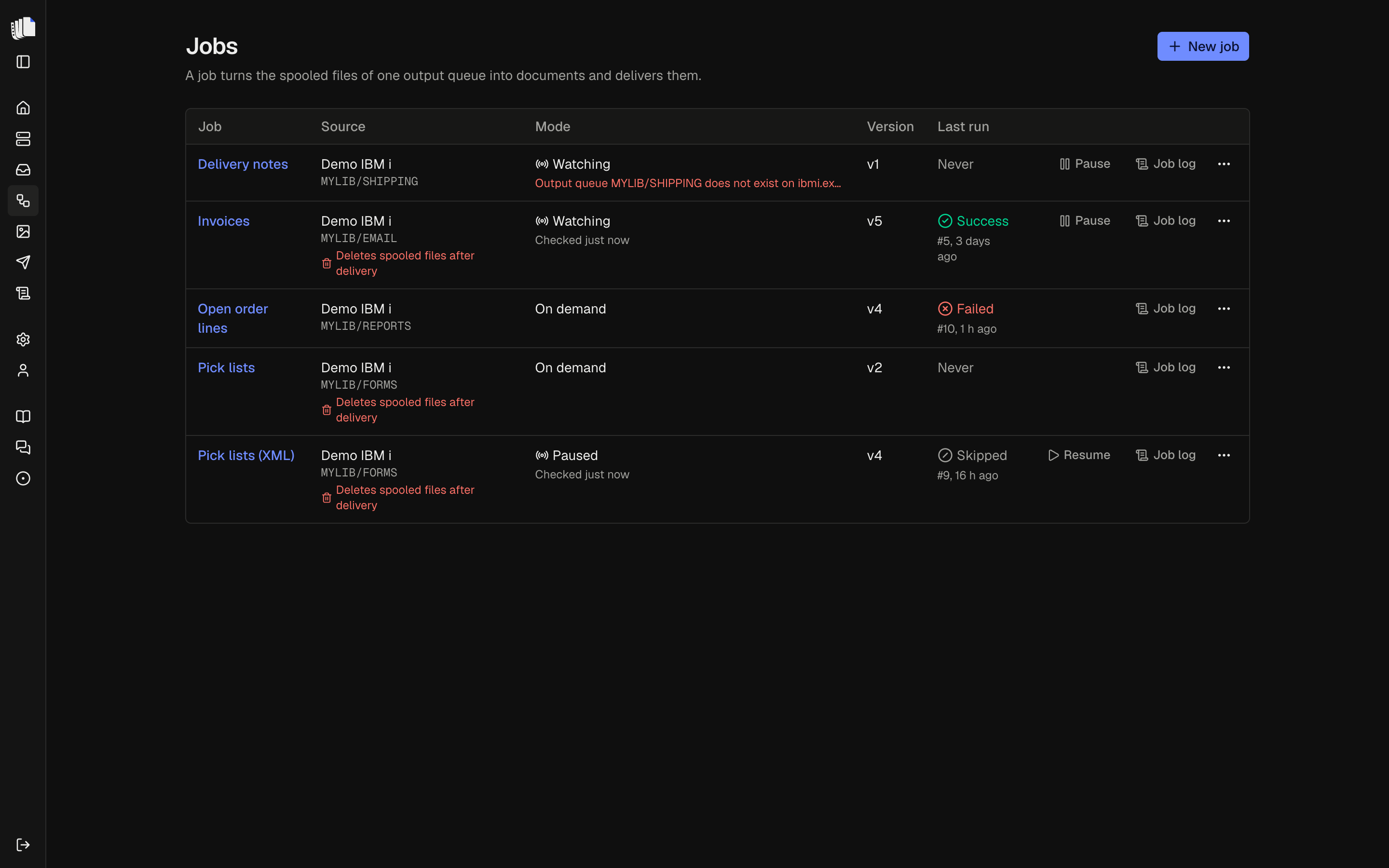
The Jobs page with five jobs: two watching, one of them with a watch error, one paused, and two run on demand, each with its server, queue, version and last runThe Jobs page with five jobs: two watching, one of them with a watch error, one paused, and two run on demand, each with its server, queue, version and last run

Job log

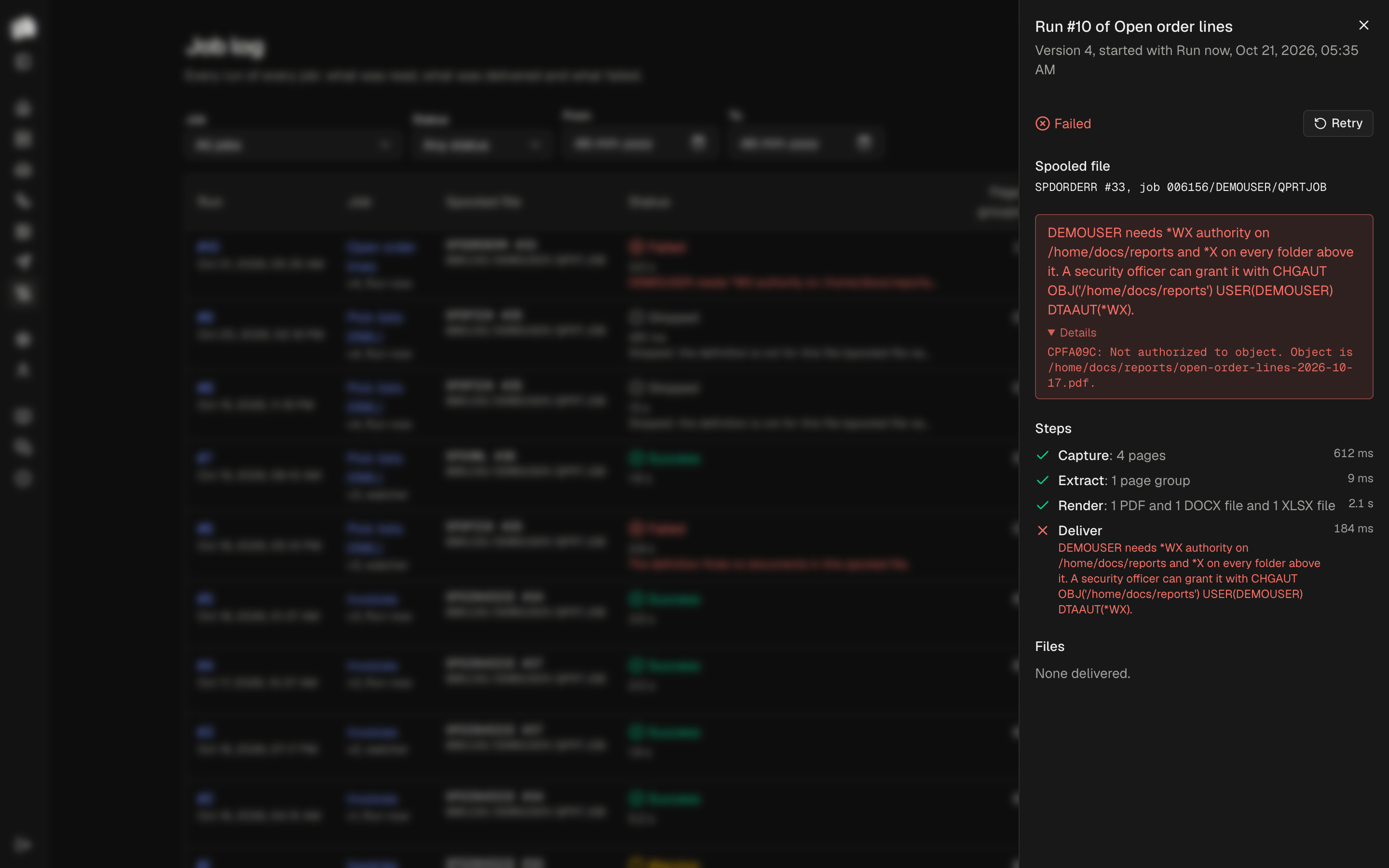
Every run of every job is in the job log: the version it used, the spooled file, what started it, its status and the files it delivered. Open a run to see its steps: capture, extract, render, deliver and finish.

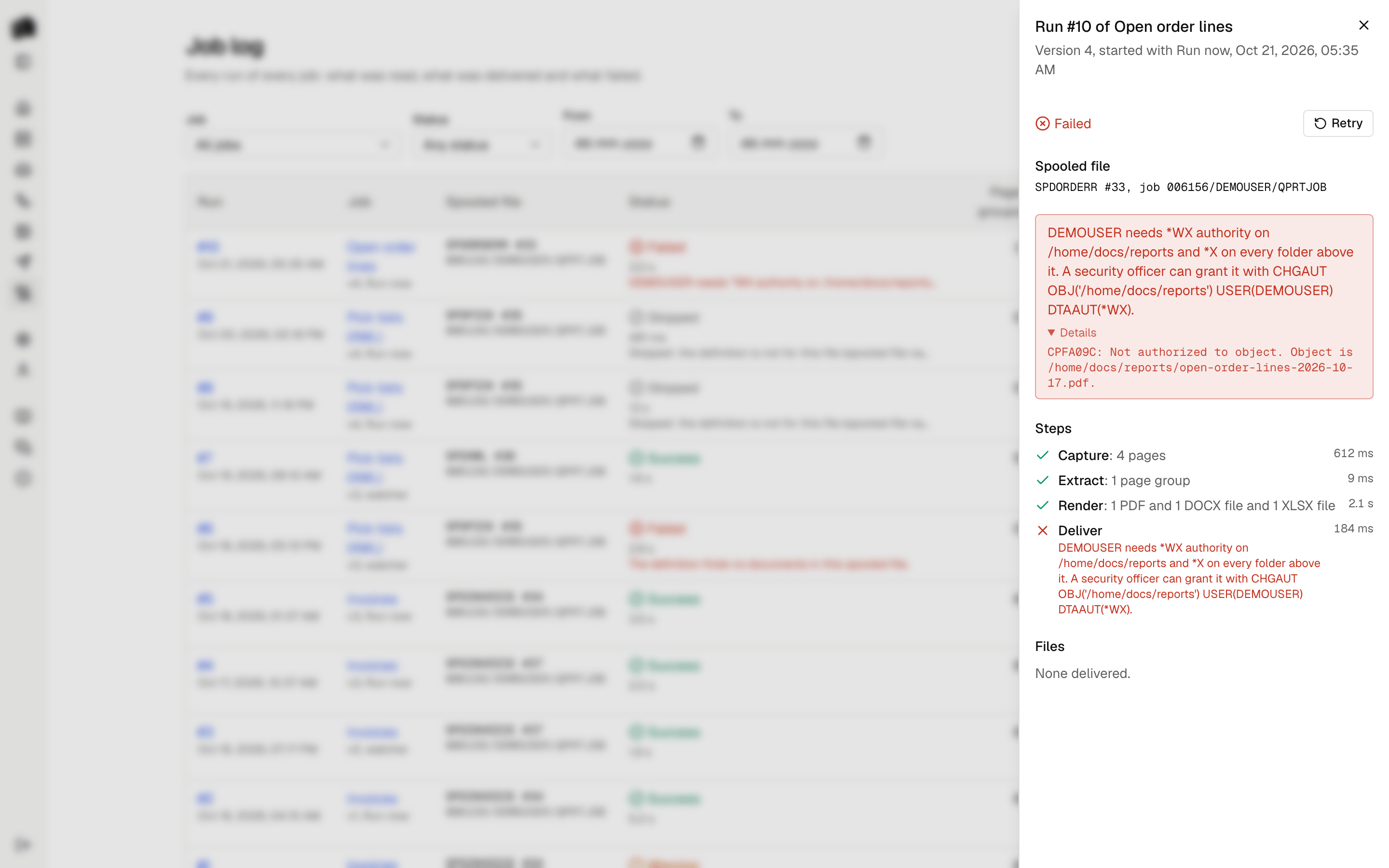
A failed run says which step failed and why, in IBM i terms: the object, the authority and the command that fixes it. The IBM i's own message is kept under Details. Failed runs show under Needs attention on the Home page.
Retry runs the same spooled file again with the active version. Runs are kept for 90 days by default, and you set how long.

Read the Job log guide

A failed run opened from the job log: the error says which authority the user profile needs on the folder and the command that grants it, Details holds the IBM i message, and the steps show that Deliver failedA failed run opened from the job log: the error says which authority the user profile needs on the folder and the command that grants it, Details holds the IBM i message, and the steps show that Deliver failed

Download and IFS destinations

The built-in destination keeps every file in Spooldoc, ready to download from the run in the job log.

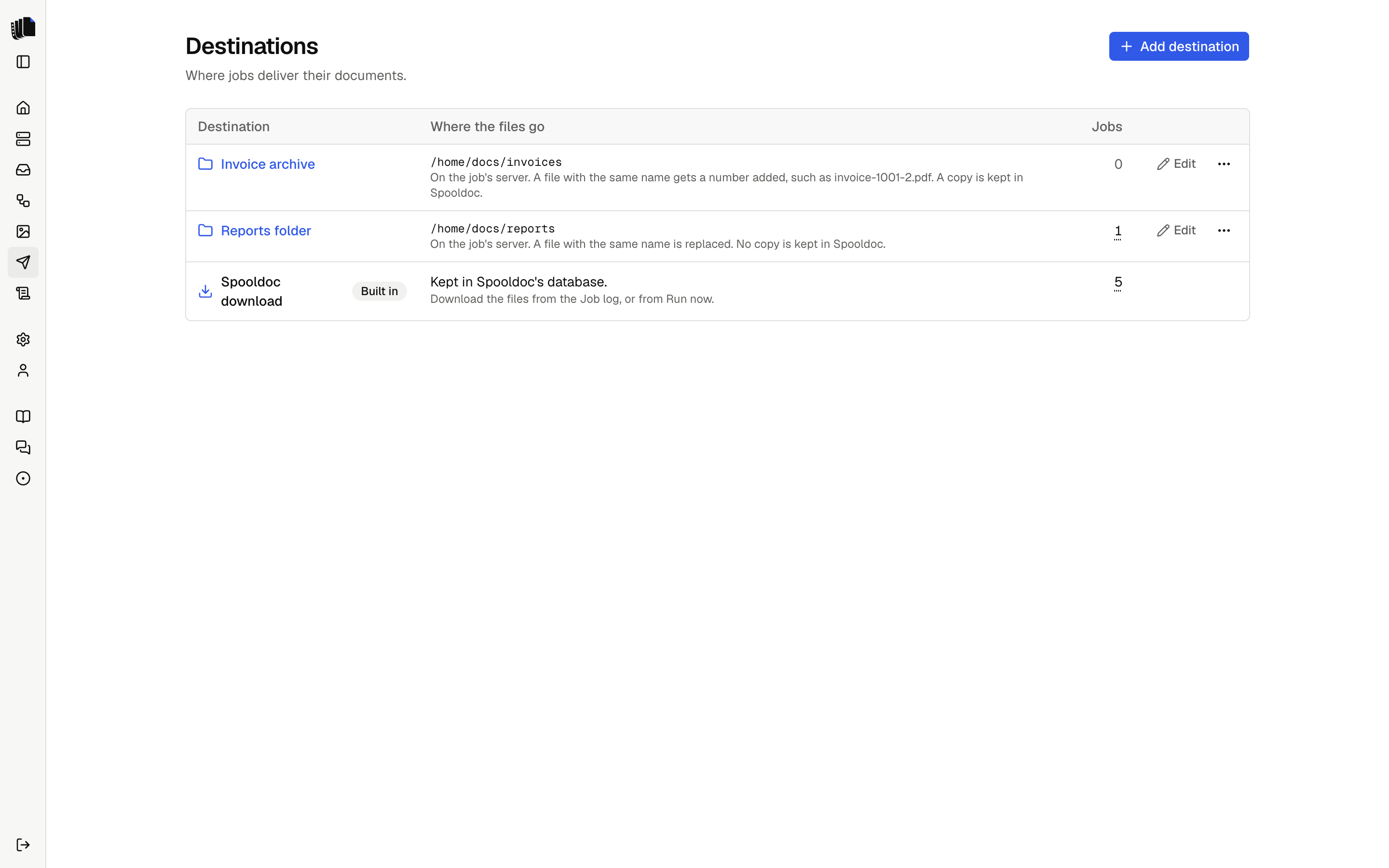
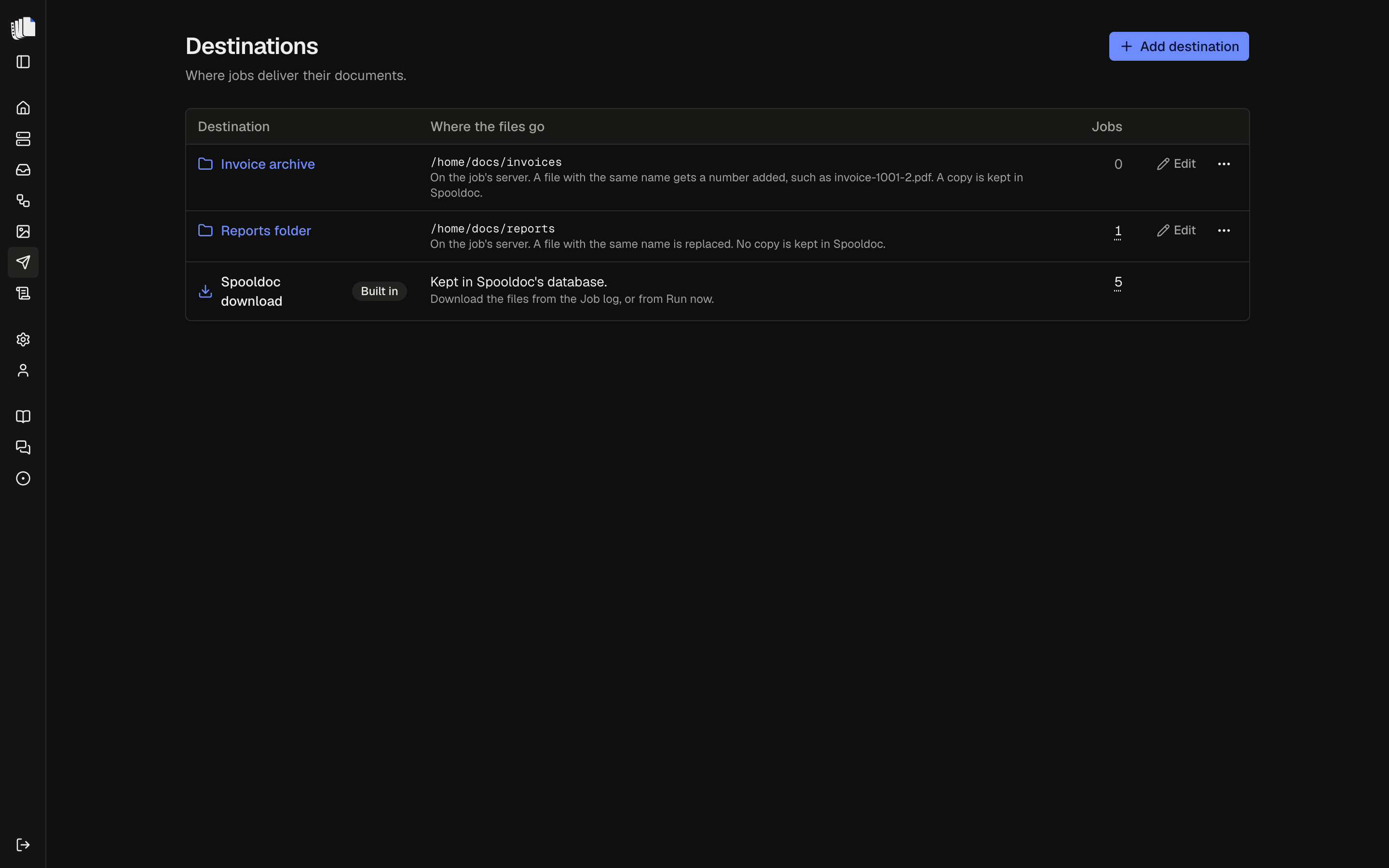
An IFS destination writes each file to a folder on the job's IBM i, where programs can pick it up. Each file is tagged with the right CCSID and is never half written. When a file with the same name exists, the destination replaces it, adds a number or fails the run, as you choose.

The spooled file is held, moved or deleted only after every file was delivered.

Read the Destinations guide

The Destinations page with two IFS folders, each with its folder and settings and the number of jobs that use it, and the built-in Spooldoc downloadThe Destinations page with two IFS folders, each with its folder and settings and the number of jobs that use it, and the built-in Spooldoc download

One Compose file

The Compose file starts the published image with a Postgres database and a Carbone server. The image holds the web app and the Java runtime for jt400, and runs on amd64 and arm64.

Every release publishes the image to ghcr.io/strom-capital/spooldoc, tagged with its version. Pin a version in production, so an upgrade happens when you choose. The server applies its database migrations when it starts.

Spooldoc runs next to the IBM i, not on it. It needs a route to the host server ports, and nothing else on the IBM i.

Read the Deployment guide and Getting started

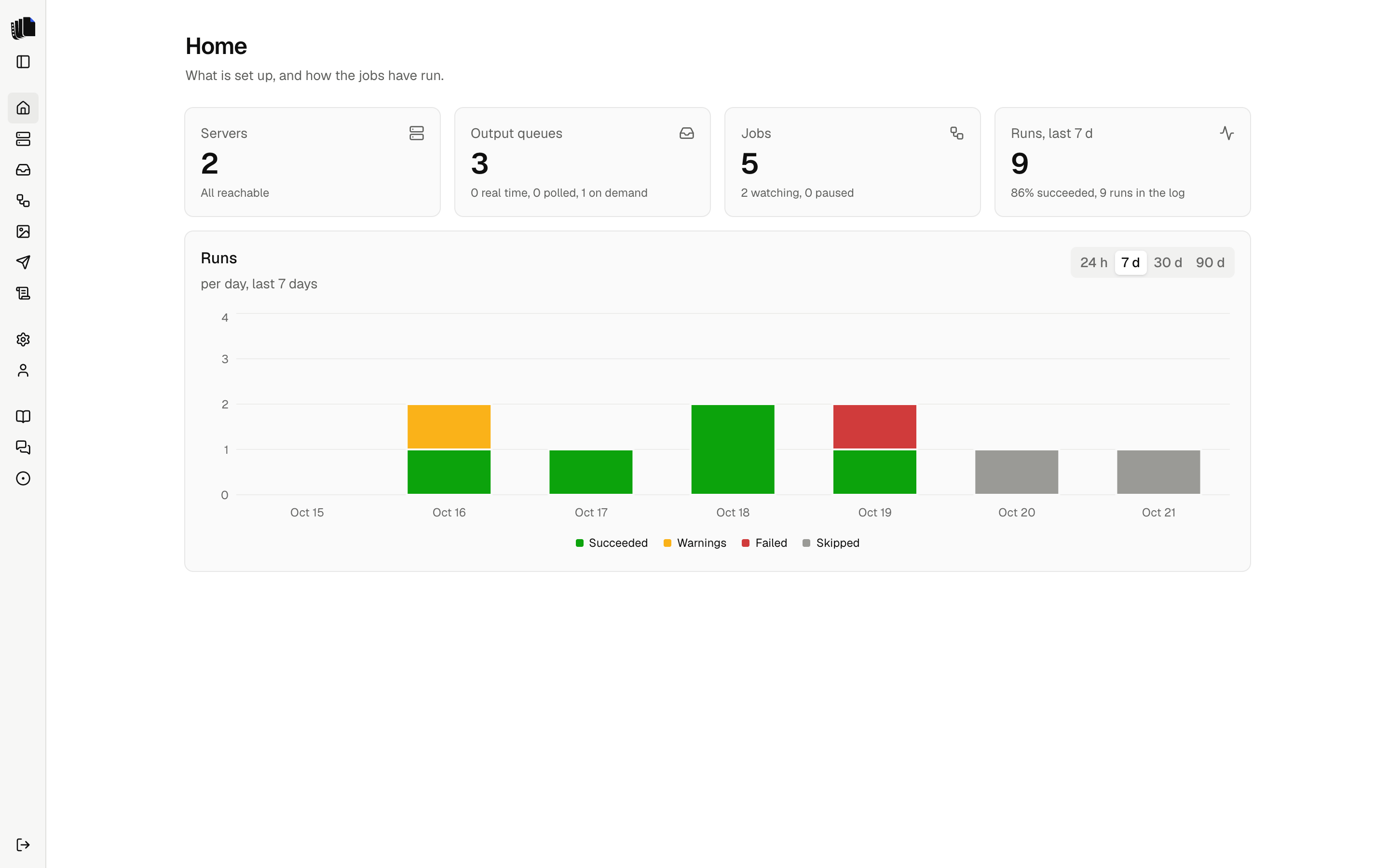
The Home page: counts of servers, output queues, jobs and runs, and a chart of runs per day by statusThe Home page: counts of servers, output queues, jobs and runs, and a chart of runs per day by status
git clone https://github.com/Strom-Capital/spooldoc.git && cd spooldoc
printf 'BETTER_AUTH_SECRET=%s\nSPOOLDOC_SECRET_KEY=%s\n' "$(openssl rand -base64 32)" "$(openssl rand -base64 32)" > .env
docker compose up -d